

Quick answer
Create a KPI dashboard by selecting 5–8 critical metrics, connecting data sources like Tally or CRM to a zero-code BI tool like FireAI, and designing a single-screen layout with KPI cards, trend charts, and colour-coded targets. FireAI's pre-built templates and natural language queries let you build a live KPI dashboard in under 4 hours — no SQL needed.
A KPI dashboard is the most important analytics artefact in your business — the single screen that tells leadership whether the company is on track. Here's how to build one from scratch, even without technical skills.
Excel KPI Tracking vs Dedicated KPI Dashboard
| Factor | Excel KPI Sheet | FireAI KPI Dashboard |
|---|---|---|
| Setup time | 2–4 hours (then repeat monthly) | 2–4 hours (one-time) |
| Data freshness | Stale (last manual update) | Live from Tally, CRM, etc. |
| Monthly maintenance | 3–5 hours reformatting | Zero — auto-updates |
| Sharing | Email attachments | Live link, scheduled email, mobile |
| Cost for ₹10Cr business | ₹15,000–20,000/month (analyst time) | ~₹3,000/month (tool cost) |
| Error risk | High (formula breaks, wrong ranges) | Near-zero (direct data connection) |
For a typical Indian SMB spending ₹2–3 lakh/year on manual KPI tracking in Excel, switching to an automated dashboard saves both money and decision-making speed.
Before You Start: Define Your KPIs
The biggest mistake when creating a KPI dashboard is including too many metrics. A dashboard with 30 numbers is a report. A dashboard with 5–8 carefully chosen KPIs is a decision tool.
How to choose the right KPIs:
- Start with your business goals — "Increase revenue 30%", "Reduce costs 10%"
- For each goal, identify 1–2 metrics that directly measure progress
- Add 1–2 operational metrics that are leading indicators of those goals
- Remove everything else
For example, an Indian manufacturing company doing ₹20Cr revenue might track:
- Monthly Revenue vs ₹1.7Cr target
- Gross Margin % (target: 35%+)
- Outstanding Receivables (threshold: <₹2Cr)
- Inventory Turnover (target: 6x/year)
- On-Time Delivery % (target: 95%+)
Five metrics. One screen. Every morning, the business owner knows exactly where they stand.
For a full guide to choosing KPIs, see what are KPIs and how to set them.
Step 1: Choose Your BI Tool
For Indian businesses without technical staff, the key criteria are:
- Zero-code interface — drag and drop, no SQL required
- Native Tally connector — if your data is in Tally Prime or ERP 9
- Natural language queries (NLQ) — ask questions in plain English like "Show revenue by product this quarter"
- Pre-built templates — KPI dashboard templates for sales, finance, and operations
- Affordable pricing — per-workspace, not per-user
FireAI is designed for exactly this — connect to Tally and 700+ other data sources and get a KPI dashboard running in hours, not weeks.
Step 2: Connect Your Data Sources
Identify where each KPI's data lives:
| KPI | Data Source |
|---|---|
| Revenue | Tally / accounting system |
| New customers | CRM / Tally party master |
| Inventory | Tally stock items |
| Website traffic | Google Analytics |
| Sales pipeline | CRM (Salesforce, Zoho CRM) |
Connect each source to your BI tool. For Tally, FireAI's native connector requires no export, no ODBC, and no IT help. For Google Sheets or Excel, upload directly. For APIs, use the built-in connector library supporting 700+ sources.
Step 3: Build Your KPI Cards
Each KPI should display:
- Current value — the actual metric this period
- Target / benchmark — what you're aiming for
- Change from prior period — is it going up or down?
- Status indicator — red/yellow/green based on target achievement
For revenue: "₹87.3L / ₹100L target (▲ 12% vs last month)" in green if above 85% of target, red if below 70%.
This is the core design of a KPI dashboard — performance relative to goal, not raw numbers.
Step 4: Add Supporting Charts
Below your KPI cards, add 2–3 charts that provide context:
- Trend line — 12-month revenue trend to show trajectory
- Breakdown chart — revenue by product, region, or salesman
- Comparison bar chart — this month vs last month vs same month last year
Don't add charts for the sake of it. Each chart should answer a specific question that the KPI card raises.
Step 5: Set Up Data Refresh
A KPI dashboard that updates manually is just a fancy spreadsheet. Configure:
- Automatic refresh — how often data syncs from each source
- Real-time (every few minutes) for operational dashboards
- Daily for strategic KPI dashboards
- On-demand refresh button for ad-hoc exploration
Step 6: Add Targets and Alerts
Set explicit targets for each KPI:
- Revenue target: ₹100L/month
- Gross margin target: 35%+
- Inventory turnover target: 6x per year
- Receivables threshold: <₹2Cr outstanding
Configure alerts that notify you when a KPI crosses a threshold:
- Alert if revenue falls below 70% of monthly target by the 15th
- Alert if gross margin drops below 30%
- Alert if inventory days remaining falls below 10 days
This turns your dashboard from passive observation to active management. See how to automate monthly reports for scheduling the full reporting workflow.
Step 7: Share With Your Team
A KPI dashboard is most valuable when it creates a shared view of performance:
- Live link — share the dashboard URL so stakeholders access it directly
- Scheduled email — automated delivery at the start of each week or month
- Embedded view — embed in your team's intranet or Notion workspace
- Mobile access — ensure the dashboard is readable on mobile for field teams
How to Do This with FireAI
Here's the exact step-by-step to build your KPI dashboard with FireAI:
- Connect Tally — Install the FireAI Tally connector. Your sales, purchase, inventory, and ledger data syncs automatically.
- Choose a template — Select a pre-built KPI dashboard template (Sales KPIs, Financial KPIs, or Operations KPIs) as your starting point.
- Customise with NLQ — Type natural language questions like "Show me monthly revenue trend for FY 2024–25" or "Compare gross margin by product category" and FireAI generates the chart instantly.
- Set targets — Enter your monthly/quarterly targets for each KPI card. FireAI auto-calculates status (green/yellow/red).
- Add drill-downs — Click any KPI to drill into details: revenue by customer, margin by product, receivables by party.
- Schedule and share — Set up daily email delivery to your leadership team. Share live dashboard links with department heads.
Result: A live, auto-updating KPI dashboard built in 2–4 hours, replacing weeks of Excel work.
Common KPI Dashboard Mistakes to Avoid
Mistake 1: Building for yourself, not your audience
An operations dashboard and a CEO dashboard need different metrics and levels of detail. Design for the audience, not for completeness.
Mistake 2: No targets
A KPI without a target is just a number. Always show context — is this good or bad relative to goal?
Mistake 3: Inconsistent metric definitions
If "active customer" means different things in sales vs finance, your KPI dashboard will generate confusion, not clarity. Agree on definitions before building.
Mistake 4: Setting it up and forgetting it
KPI dashboards need quarterly reviews — business priorities change, metrics become irrelevant, new data sources become available.
Ready to act on your data?
See how teams use FireAI to ask in plain language and get analytics they can trust.
Explore FireAI workflows
Go from this topic into product features and solution paths that match what you read here.
Topic hub
Dashboard And Reporting
Practical content on KPI dashboards, executive reporting, trend analysis, charts, and reporting automation.
Explore hubFrequently asked questions
How do I create a KPI dashboard from Tally data without coding?
Connect Tally to FireAI using the native Tally connector — no ODBC, no export, no IT help. FireAI automatically reads your sales, purchase, inventory, and ledger data. Choose a pre-built KPI template, customise the metrics, and your live dashboard is ready in 2–4 hours. You can also ask questions in plain English using natural language queries.
How many KPIs should a dashboard have for a small Indian business?
A KPI dashboard for a ₹5–50Cr Indian business should show 5–8 key metrics on the main view: revenue vs target, gross margin, cash position, receivables, and 1–2 operational metrics specific to your industry. If you need more, create separate dashboards for sales, finance, and operations rather than cramming 30 metrics on one screen.
What is the best KPI dashboard tool for Indian businesses using Tally?
FireAI is purpose-built for Indian businesses using Tally. It offers a native Tally connector, zero-code dashboard builder, natural language queries, pre-built KPI templates, and affordable per-workspace pricing. Alternatives like Power BI require SQL knowledge and complex Tally integration. Zoho Analytics works but lacks the depth of Tally-specific features.
How much does it cost to set up a KPI dashboard for my business?
With FireAI, a KPI dashboard costs approximately ₹3,000–5,000/month with no per-user charges. Compare this to hiring an analyst (₹25,000–40,000/month) or building custom dashboards with Power BI (₹5,000–15,000/month plus developer time). For most Indian SMBs, the ROI is positive within the first month.
Can I build a KPI dashboard that combines Tally, Google Sheets, and CRM data?
Yes. FireAI supports 700+ data sources including Tally, Google Sheets, Excel, MySQL, Salesforce, and Zoho CRM. You can create a single KPI dashboard that shows financial data from Tally, sales pipeline from CRM, and operational targets from Google Sheets — all updating automatically from live sources.
Related in this topic
What is a KPI Dashboard? Definition and Examples
A KPI dashboard is a visual display of key performance indicators that gives business leaders an at-a-glance view of performance against goals. Learn what KPI dashboards include, how to build one, and see examples across sales, finance, and operations.
KPIs Explained: 50+ Examples by Department [2026 Guide]
KPIs define how you measure progress toward goals. Learn the definition, examples by department, and how to track KPIs with targets and dashboards that drive action.
How to Automate Monthly Business Reports
Learn how to automate monthly reports for sales, finance, and operations. Stop spending hours on manual Excel reports — set up automated dashboards and scheduled report delivery with AI-powered BI tools.
Tally Analytics: Turn Tally Data into Dashboards & Reports
Get AI-powered analytics and dashboards from Tally Prime data without SQL. FireAI connects to Tally for live GST, sales, inventory, and P&L—no spreadsheet exports.
From the blog

What is a KPI dashboard and why does every Indian business need one?
Still piecing together your business numbers from WhatsApp messages and old Excel files? Here is why a KPI dashboard changes everything for Indian businesses.
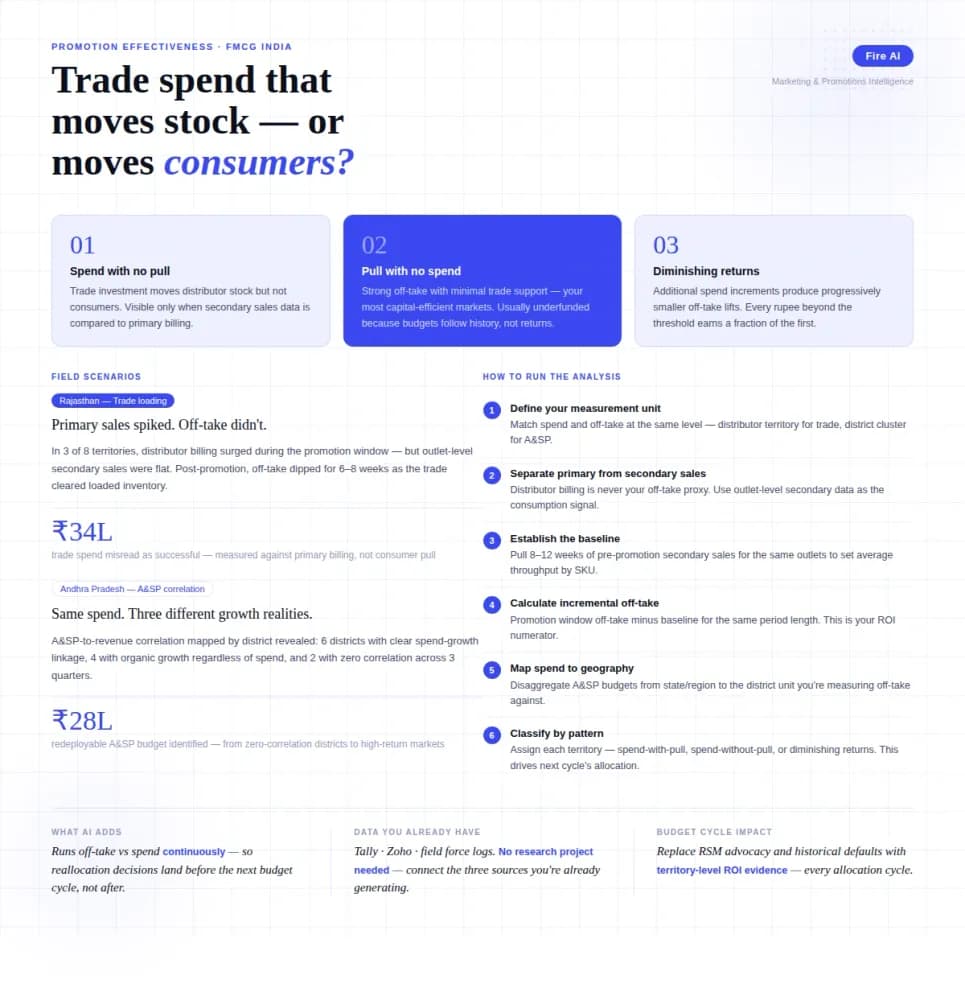
Measuring Promotion Effectiveness: A Data-Driven Guide for FMCG Marketers
FMCG brands in India spend 15–25% of gross revenue on trade promotions and A&SP (advertising and sales promotion) every year. Most can tell you how much they spent. Very few can tell you what it returned. The problem isn't a lack of data — it's that the data lives in disconnected places. Trade spend sits in finance. Off-take data lives with the distributor or field team. A&SP budgets are tracked in a marketing spreadsheet. No single view ties promotional investment to consumer pull at the outlet level. The result is a budget cycle where last year's spend allocation becomes next year's default, because no one has the numbers to argue for something different. This guide walks through how FMCG marketing and trade teams can build a promotion effectiveness framework that actually connects spend to outcome — not just channel-level assumptions.

Democratizing Data: How AI Analytics Levels the Playing Field for Small Businesses and Freelancers
For decades, data-driven decision making was a luxury that only enterprises could afford. Big companies hired data scientists, purchased expensive BI tools, and built complex data warehouses. In exchange, they received precise insights that guided budgets, strategy, and growth.