
FireAI – Database Connector DIY Manual
This guide will help you connect your databases (Postgres, MySQL, Oracle, MS-SQL, ClickHouse) with FireAI. Follow the steps carefully to complete the setup.
Prerequisites
- Active FireAI account (with login credentials).
- Database details:
- Host / Server Name
- Port
- Database Name
- Username & Password
- Internet connection.
- Admin/DBA access to the database.
Step 1: Open FireAI
1. Log in to your FireAI Home Page.
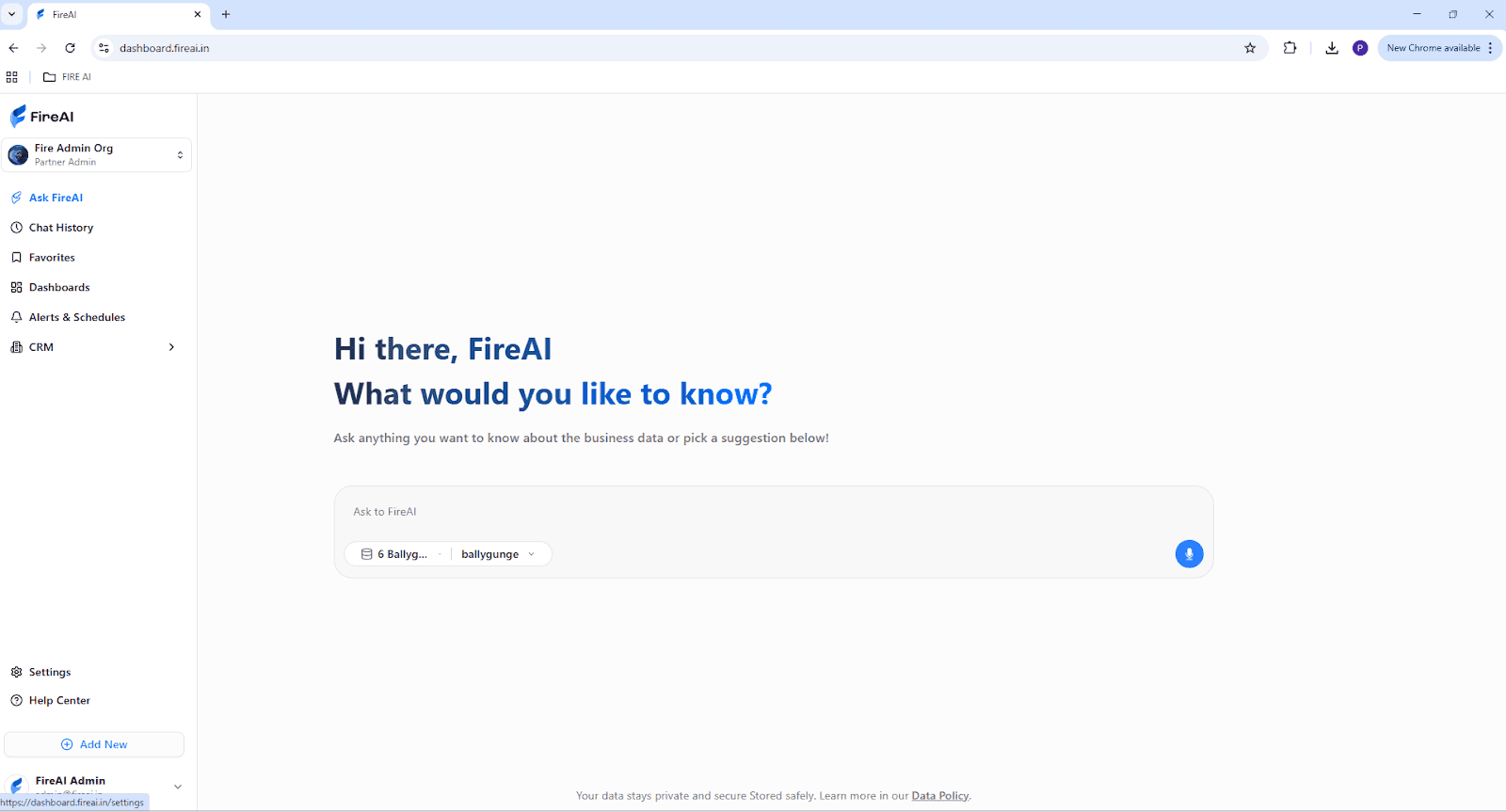
Step 2: Access Data Integration
1. Go to Settings (bottom-left corner).
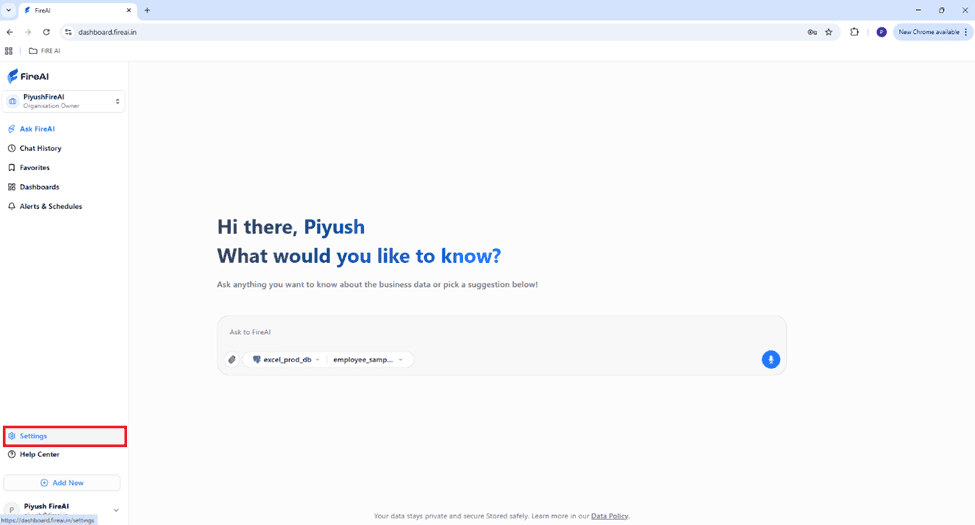
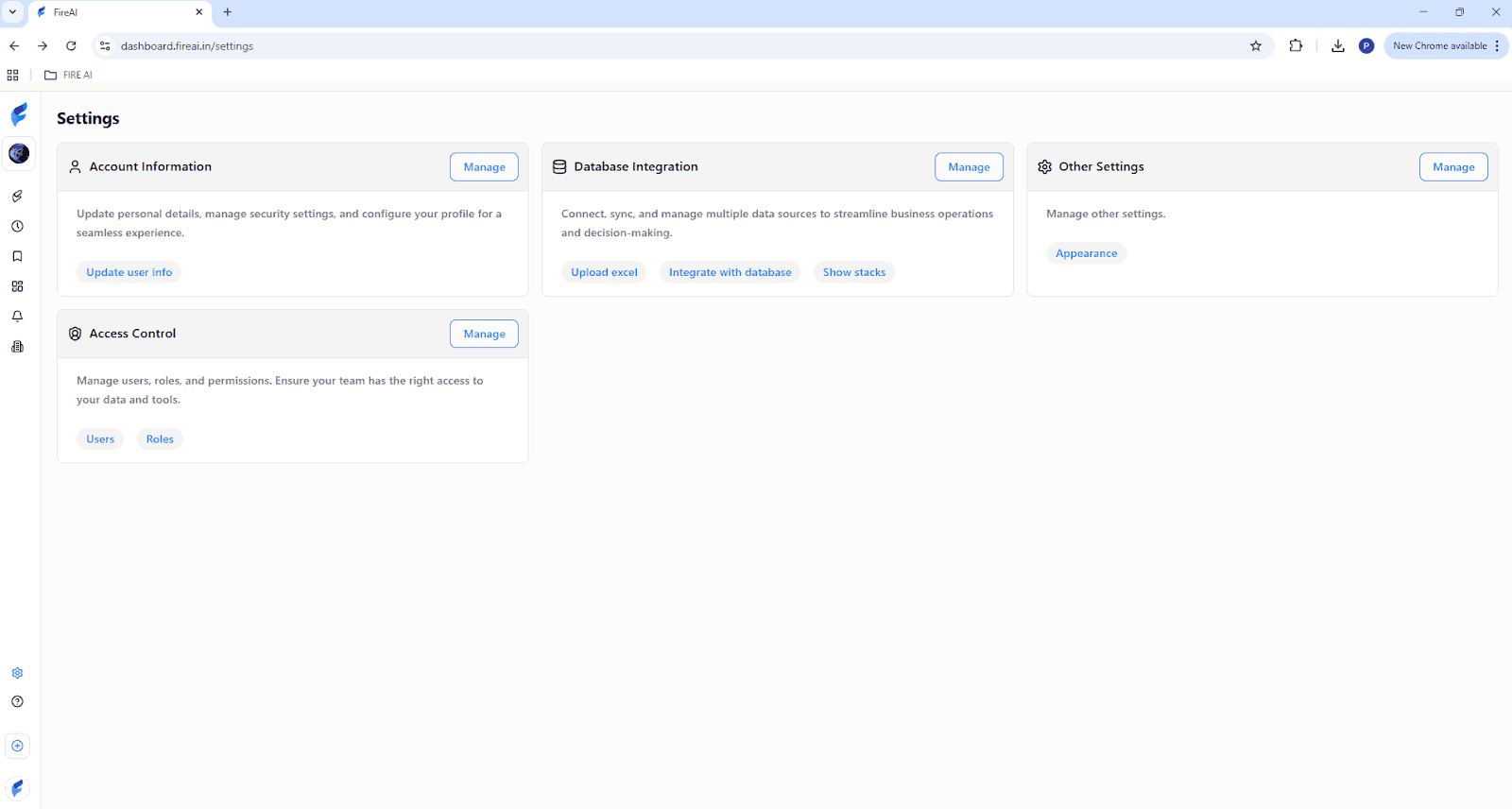
Step 3: Add New Data Source
1. Click Add.
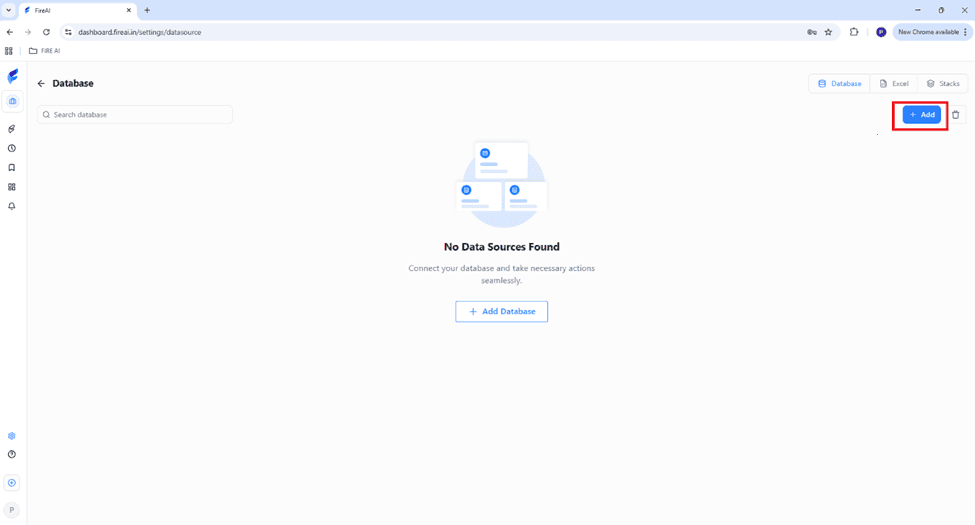
Step 4: Enter Database Details
1. Host / Server
2. Port
3. Database Name
4. Username & Password
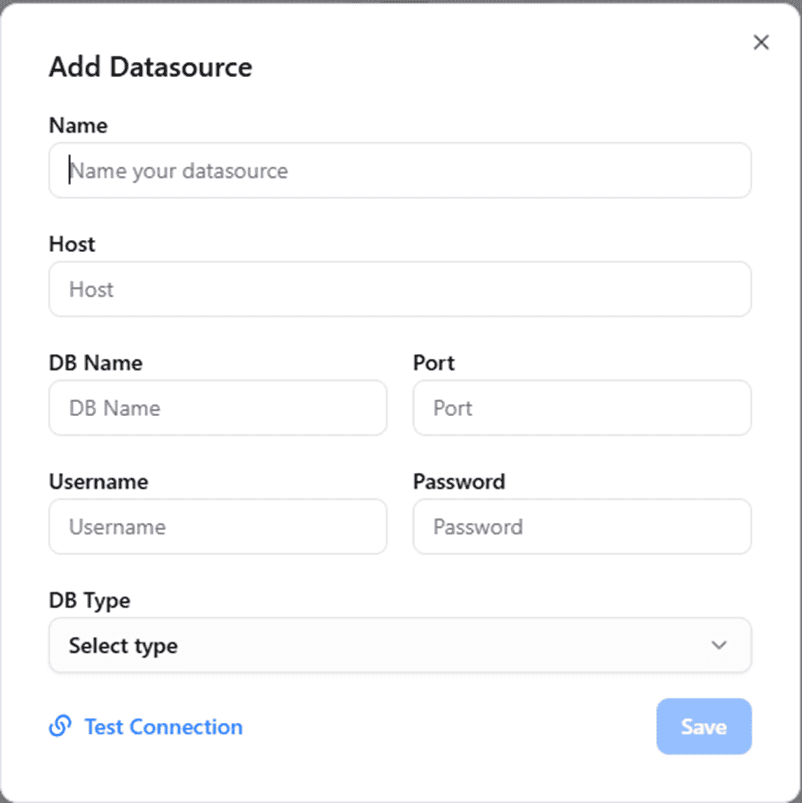
Step 5: Choose Database Type
1. PostgreSQL
2. MySQL
3. Oracle
4. MS-SQL
5. ClickHouse
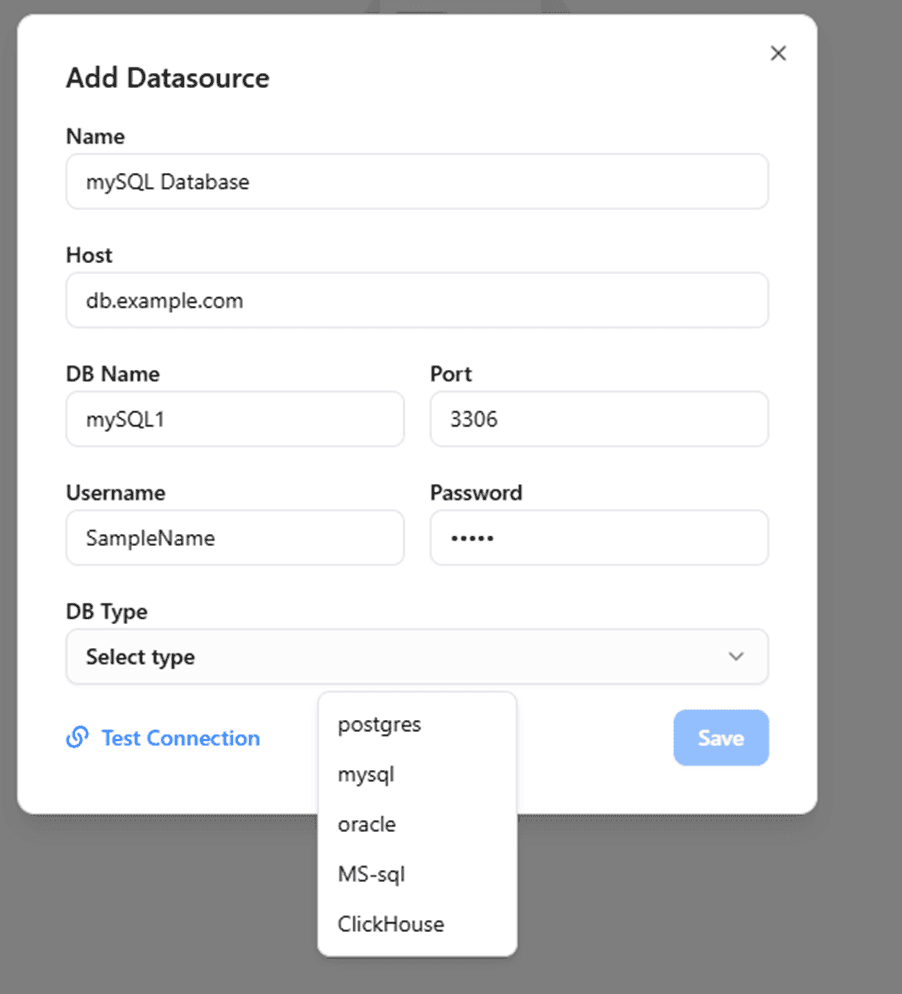
Step 6: Test Connection
1. Click Test Connection to verify database connectivity
Step 7: Confirm Connection
1. Once the test passes, click Add Connection.
2. Your database is now successfully connected to FireAI!
Troubleshooting
1. Connection failed? Check if DB port is open and reachable from your network.
2. Invalid credentials? Verify username/password.
3. SSL issues? Enable SSL in DB settings if required.
4. Timeouts? Ensure firewall allows outbound/inbound access.
Need Help?

We are here to support you.
Email support@fireai.in or call us on +91 8828869898 for help, feedback and collaboration.