

Quick answer
Export Tally data for analytics via CSV, XML, ODBC, or native BI connectors. For most Indian businesses, FireAI's one-click Tally connector is the fastest path — zero-code setup, real-time auto-sync, and pre-built dashboard templates that handle Tally's ledger-group-voucher structure automatically. No manual exports or IT involvement needed.
Getting data out of Tally Prime is the single biggest barrier to analytics adoption for Indian businesses. Tally stores data in a proprietary format, and most BI tools do not understand Tally's ledger-group-voucher structure natively. A ₹10 Cr manufacturer spending 8 hours per week on manual Tally exports is losing ₹40,000+ monthly in team productivity alone. This guide covers every practical method for extracting Tally data — from the simplest CSV export to FireAI's one-click, zero-code connector. For the fastest path, see connect Tally to BI.
Why Exporting Tally Data Is Harder Than It Seems
Tally Prime's data model is fundamentally different from a relational database:
- Ledgers serve as both accounts and master data (customers, vendors, expenses)
- Groups create a hierarchy (Current Assets → Bank Accounts → HDFC Bank)
- Vouchers are transactions tagged with ledgers, stock items, cost centres, and GST details
- Stock items have their own hierarchy (groups, categories, godowns)
When you export a "sales register" from Tally, you get a flat table. But the analytics potential lies in connecting sales data with customer masters, product hierarchies, cost centres, and ledger groups — which requires understanding Tally's structure.
Method 1: CSV / Excel Export
How It Works
Open any report in Tally Prime → Press Alt + E or use Export option → Choose Excel/CSV format → Save the file.
What You Can Export
- Daybook (all vouchers)
- Sales Register
- Purchase Register
- Ledger-wise reports
- Stock Summary
- Outstanding reports (receivables, payables)
- Trial Balance, P&L, Balance Sheet
- GST reports
Pros and Cons
| Aspect | Details |
|---|---|
| Ease | Very easy, no technical skill needed |
| Cost | Free (built into Tally) |
| Automation | None — manual process each time |
| Data structure | Flat tables, limited hierarchy |
| Refresh frequency | Depends on discipline (usually monthly) |
| Data volume | Works for small to medium datasets |
| Suitable for | Ad hoc analysis, one-time reports |
Limitations
- No automated scheduling — someone must open Tally, navigate to the report, and export every time
- Exported CSV loses Tally's hierarchical structure (ledger groups, stock groups)
- Date and number formatting can break when opened in Excel
- Cannot export relational data (e.g. sales linked to customer master attributes)
Method 2: XML Export (Tally Integration)
How It Works
Tally Prime supports XML-based data exchange. You can configure export templates that output structured XML files for any report or master data.
Steps
- Go to Gateway of Tally → Export → XML
- Select the report type (e.g. "Vouchers" or "Masters")
- Configure output format and destination folder
- Tally generates an XML file with full data structure
Pros and Cons
| Aspect | Details |
|---|---|
| Ease | Moderate — requires XML configuration |
| Cost | Free (built into Tally) |
| Automation | Can be scheduled via Tally's TDL scripting |
| Data structure | Rich — preserves hierarchy and relationships |
| Refresh frequency | Can be semi-automated |
| Data volume | Handles large datasets |
| Suitable for | Custom integrations, ETL pipelines |
Limitations
- XML files are verbose and require parsing before loading into a BI tool
- Scheduling requires TDL (Tally Definition Language) knowledge — a niche skill in India
- No real-time sync — still a batch export process
Method 3: ODBC Connector
How It Works
Tally Prime includes an ODBC (Open Database Connectivity) driver that lets external tools query Tally data using SQL-like syntax.
Steps
- Enable Tally ODBC server in Tally Prime configuration
- Install Tally ODBC driver on the machine running the BI tool
- Configure DSN (Data Source Name) pointing to Tally
- Use SQL queries in your BI tool to pull data from Tally
Pros and Cons
| Aspect | Details |
|---|---|
| Ease | Complex — requires IT/developer involvement |
| Cost | Free driver, but setup effort is significant |
| Automation | Query-based, can be scheduled |
| Data structure | Full access to Tally's data model |
| Refresh frequency | On-demand or scheduled |
| Data volume | Good for large datasets |
| Suitable for | Technical teams, custom BI implementations |
Limitations
- Requires Tally to be running on the server for ODBC access
- Query performance can be slow for large datasets
- Not all BI tools support Tally's ODBC dialect seamlessly
- Needs IT maintenance — if Tally restarts, ODBC connections break
Method 4: Native BI Connector (Recommended)
How It Works
FireAI provides a one-click, zero-code Tally Prime connector that understands Tally's data model natively. It syncs vouchers, ledgers, stock items, cost centres, and groups automatically with real-time auto-sync — no manual exports ever. Pre-built dashboard templates for P&L, sales, receivables, and inventory are ready the moment data syncs. FireAI also connects to 700+ other data sources including databases, cloud apps, other ERPs, and file uploads.
Steps
- Install FireAI's one-click connector on your Tally machine — zero-code setup, under 5 minutes
- Authenticate and select the Tally company
- Data syncs automatically in real time — all voucher types, ledgers, and masters
- Pre-built dashboards are ready instantly; use NLQ (natural language queries) for ad-hoc analysis
Pros and Cons
| Aspect | Details |
|---|---|
| Ease | Very easy — no technical skill needed |
| Cost | Included in BI tool subscription |
| Automation | Fully automated daily sync |
| Data structure | Preserves Tally hierarchy and relationships |
| Refresh frequency | Daily (or more frequent) |
| Data volume | Handles enterprise-scale Tally data |
| Suitable for | All businesses, especially non-technical teams |
Advantages Over Other Methods
- One-click setup, zero-code — no manual exports or IT involvement
- Understands Tally-specific concepts (ledger groups, cost centres, godowns, voucher types)
- Pre-built dashboard templates (P&L, sales, receivables, inventory) ready immediately
- NLQ support — ask questions like "Show top 10 customers by outstanding" in English or Hindi
- Handles data type conversion, date formatting, and ₹ currency automatically
Comparison: Which Method Should You Choose?
| Criteria | CSV Export | XML Export | ODBC | Native Connector |
|---|---|---|---|---|
| Best for | Ad hoc analysis | Custom ETL | Technical teams | All businesses |
| Setup time | Minutes | Hours | Days | 30 minutes |
| Ongoing effort | High (manual) | Medium | Medium | Zero |
| Data freshness | Stale (weekly/monthly) | Semi-fresh | Fresh | Daily auto-sync |
| Technical skill | None | Medium | High | None |
| Recommended for SMBs | No | No | No | Yes |
Best Practices for Tally Data Export
1. Clean Your Master Data First
Before exporting, fix:
- Duplicate ledger names (customer, vendor, expense)
- Inconsistent stock item names
- Missing cost centre tags on vouchers
- Inactive ledgers cluttering reports
2. Export at the Right Granularity
- For sales analytics: export sales vouchers with line items (not just totals)
- For financial analytics: export the daybook or ledger-wise reports
- For inventory: export stock summary with godown details
3. Maintain a Consistent Schedule
If using CSV or XML, set a weekly or monthly export calendar. Analytics from stale data is worse than no analytics — it creates false confidence.
4. Preserve Hierarchy Information
Tally's power is in its hierarchical structure (groups, sub-groups, categories). Choose export methods that preserve this hierarchy — XML and native connectors do this well; CSV does not.
5. Include GST Data
For Indian businesses, GST information (GSTIN, tax rates, HSN codes) should be part of the export. This enables GST analytics, input credit tracking, and GSTR reconciliation from the same BI dashboard.
Common Mistakes
- Exporting summary reports instead of transaction-level data — summaries limit your ability to drill down
- Ignoring date format mismatches — Tally uses dd-mm-yyyy; many BI tools default to mm-dd-yyyy
- Not including voucher types — sales, credit notes, debit notes, and journal entries must all be exported for complete analytics
- Forgetting to export master data — ledger masters, stock item masters, and group hierarchies are essential context for transaction data
Ready to act on your data?
See how teams use FireAI to ask in plain language and get analytics they can trust.
Explore FireAI workflows
Go from this topic into product features and solution paths that match what you read here.
Topic hub
Tally Analytics
Analytics for Tally Prime and Tally ERP — one of 700+ data sources FireAI connects to — including dashboards, reporting, GST, and finance workflows.
Explore hubFrequently asked questions
What is the easiest way to get Tally data into a BI tool?
FireAI's one-click Tally connector is the easiest method. It takes under 5 minutes to set up with zero-code, syncs data in real time, and provides pre-built dashboard templates. CSV export works for one-time analysis but is not sustainable for ongoing dashboards.
Can I connect Tally Prime directly to Power BI or Tableau?
Power BI and Tableau do not have native Tally connectors. You would need CSV/Excel exports, ODBC configuration, or custom ETL pipelines — all requiring technical effort and ongoing maintenance. This is why many Indian businesses choose FireAI, which offers a native Tally connector with zero-code setup and pre-built templates.
How often should I export Tally data for analytics?
For meaningful analytics, real-time or daily sync is ideal. Weekly is acceptable for financial reporting. Monthly exports are too infrequent for operational dashboards. FireAI's real-time auto-sync eliminates this question entirely — data flows continuously without manual intervention.
Does exporting data from Tally slow down Tally performance?
FireAI's native connector reads data in the background using minimal system resources. It does not interfere with Tally's core operations — voucher entry, report generation, and data backup all continue normally. Unlike ODBC, which can cause query-related slowdowns, FireAI's connector is optimised for Tally's architecture.
Can I export GST data from Tally for analytics?
Yes. FireAI's Tally connector syncs GST information including GSTIN, tax rates, HSN codes, and ITC details alongside transaction data. This enables GST liability dashboards, input credit tracking, and GSTR reconciliation — all from the same platform without separate exports.
Related in this topic
Tally Analytics: Turn Tally Data into Dashboards & Reports
Get AI-powered analytics and dashboards from Tally Prime data without SQL. FireAI connects to Tally for live GST, sales, inventory, and P&L—no spreadsheet exports.
How to Build a Sales Dashboard from Tally Data
Step-by-step guide to building a sales dashboard from Tally Prime data. Track revenue, customer performance, and product-wise sales with BI tools for Indian businesses.
Can AI Work with Tally Prime and ERP 9 Data?
Yes — AI can connect directly to Tally Prime and Tally ERP 9 to deliver instant dashboards, natural language queries, and automated insights on your financial, sales, and inventory data. Learn how AI analytics works with Tally data.
How to Connect Tally to a BI Tool for Dashboard Reporting
Step-by-step guide to connecting Tally Prime and ERP 9 to a BI tool for live dashboards, automated reporting, and visual analytics without manual CSV exports.
From the blog

Democratizing Data: How AI Analytics Levels the Playing Field for Small Businesses and Freelancers
For decades, data-driven decision making was a luxury that only enterprises could afford. Big companies hired data scientists, purchased expensive BI tools, and built complex data warehouses. In exchange, they received precise insights that guided budgets, strategy, and growth.
Tally Analytics Dashboards for Indian Businesses
80% of Indian SMBs use Tally. Fewer than 5% have dashboards. Learn how to build real-time P&L, cash flow, and receivables analytics from your Tally Prime data.
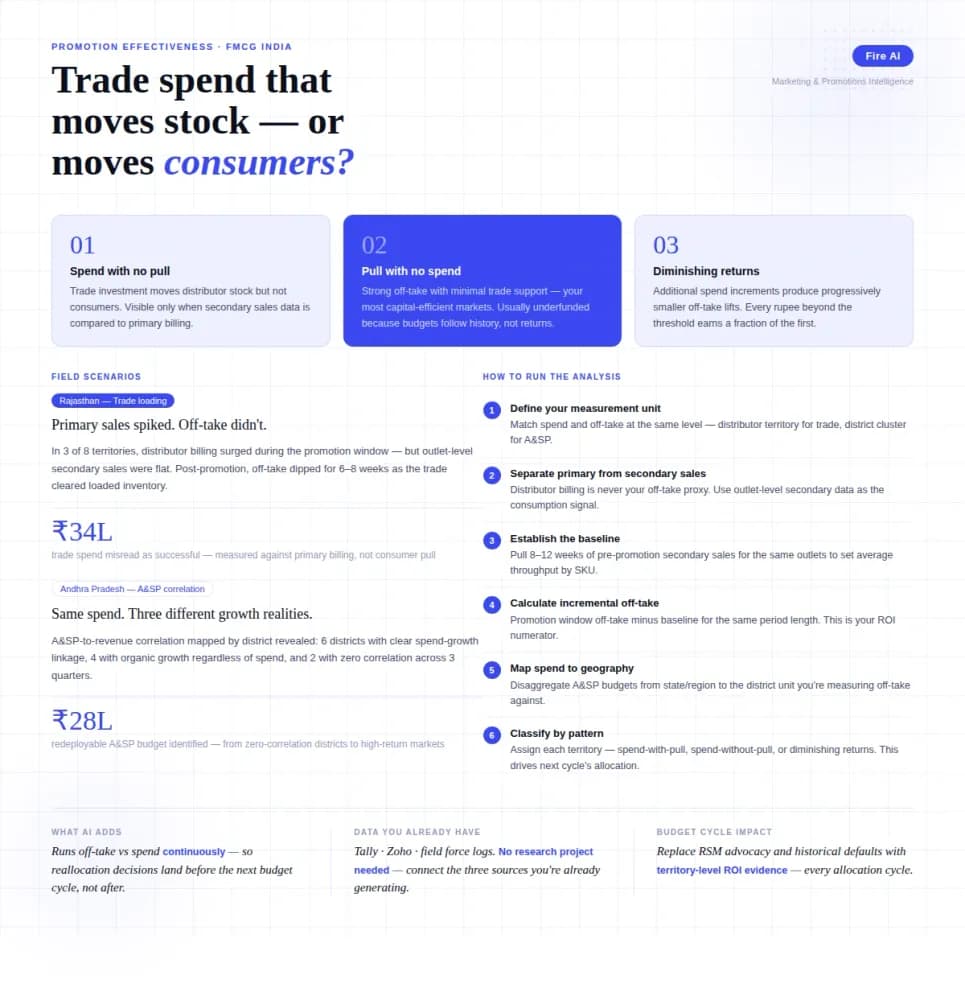
Measuring Promotion Effectiveness: A Data-Driven Guide for FMCG Marketers
FMCG brands in India spend 15–25% of gross revenue on trade promotions and A&SP (advertising and sales promotion) every year. Most can tell you how much they spent. Very few can tell you what it returned. The problem isn't a lack of data — it's that the data lives in disconnected places. Trade spend sits in finance. Off-take data lives with the distributor or field team. A&SP budgets are tracked in a marketing spreadsheet. No single view ties promotional investment to consumer pull at the outlet level. The result is a budget cycle where last year's spend allocation becomes next year's default, because no one has the numbers to argue for something different. This guide walks through how FMCG marketing and trade teams can build a promotion effectiveness framework that actually connects spend to outcome — not just channel-level assumptions.