
Agent
CXO Agent
Turn the data on any dashboard into a CXO-ready report — ask for what you want in plain language, arrange the result, and export or save it as a reusable template.
Updated September 27, 2026
The CXO Agent builds a report from a dashboard you already have. It reads the same widgets and data as the dashboard, so you never re-connect a source or rebuild a chart — you just describe the report you want.
Where to find it
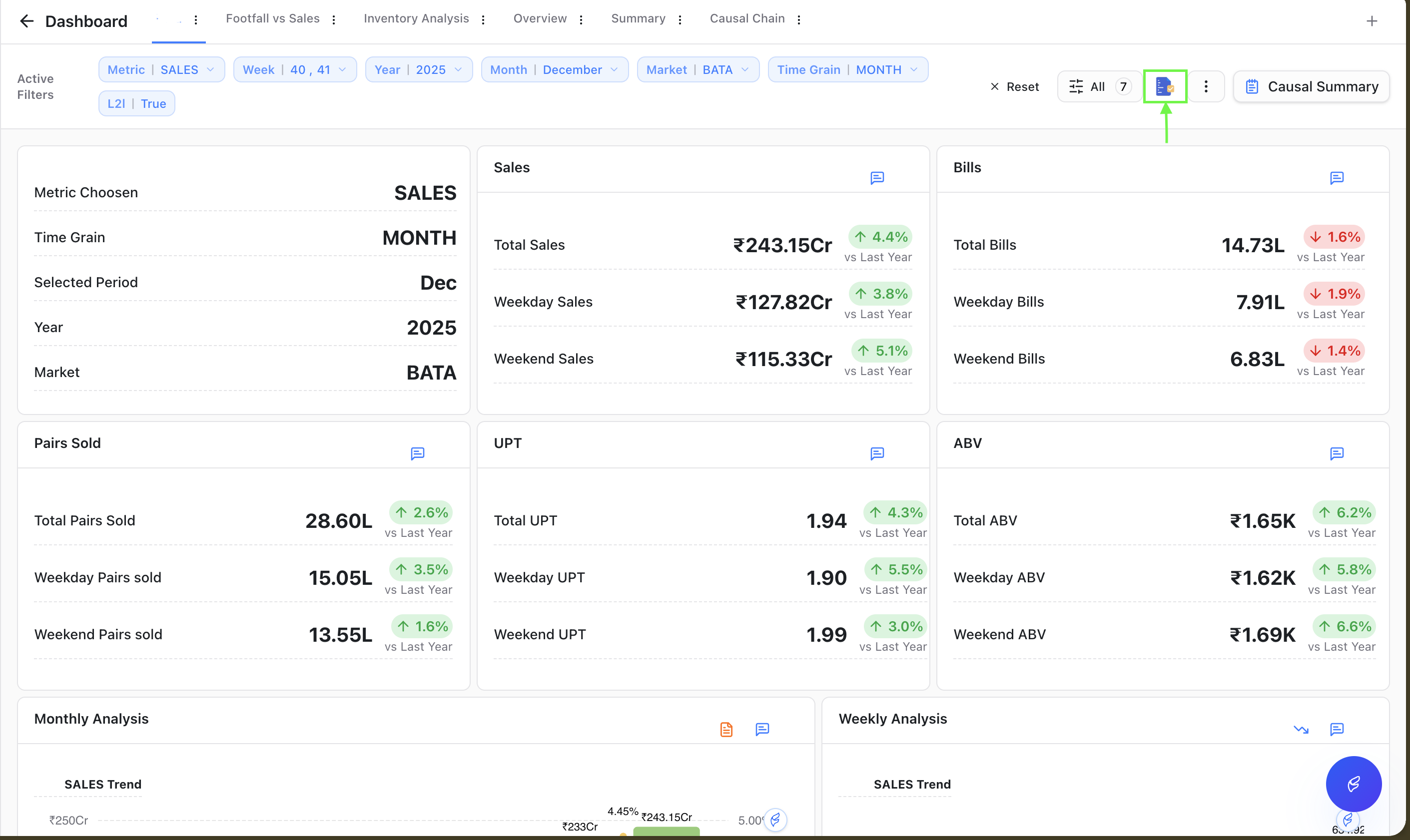
Open any dashboard and click the report icon in the top toolbar ("Dashboard summary"). It opens the CXO Agent for that dashboard, with your widgets on the left and the report builder on the right.
Start a new report
When you open the CXO Agent on a dashboard with no reports yet, you land on a start screen with three ways to begin.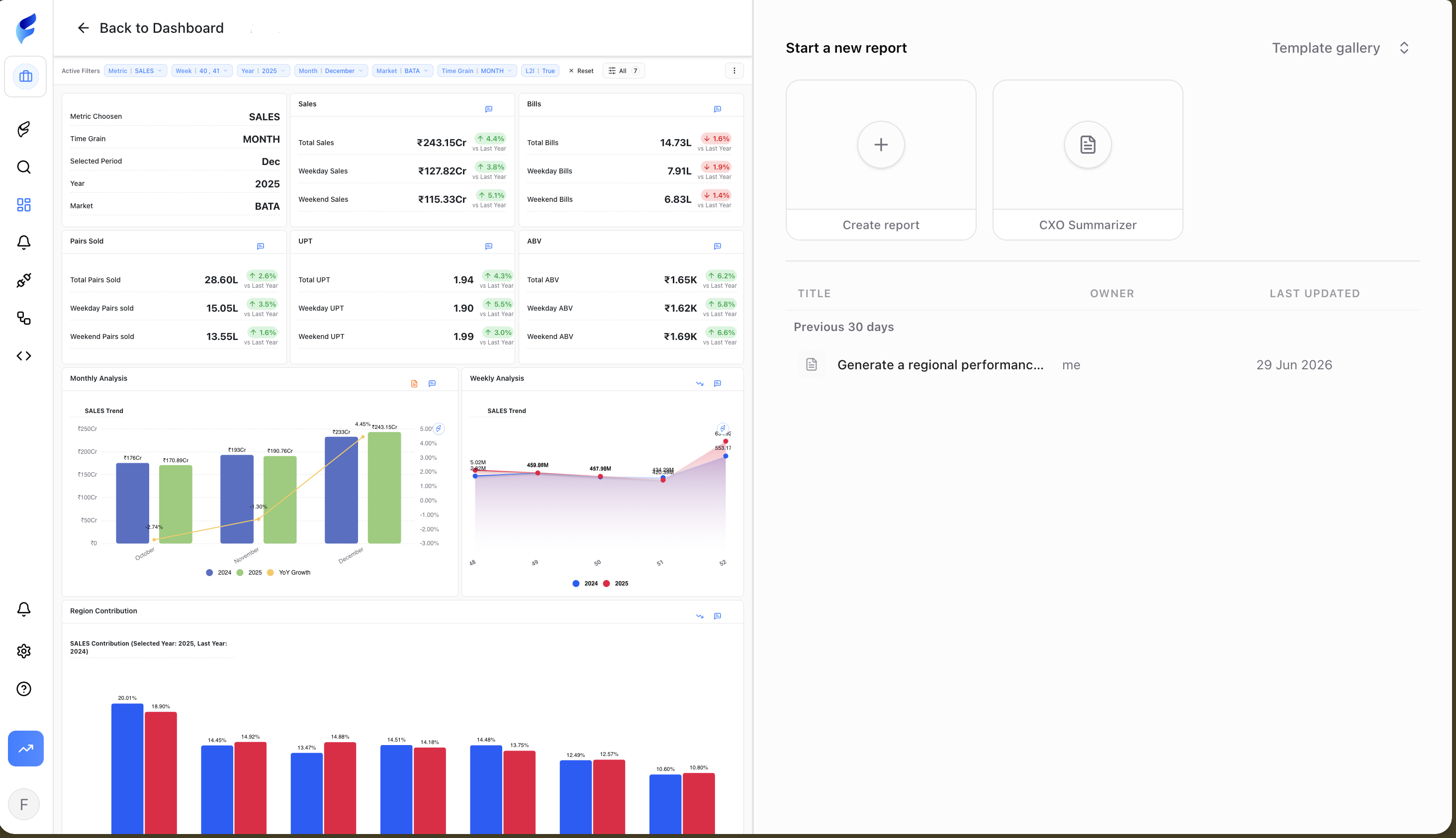
Option 1: Start from a blank report
- Click Create report.
- In the message box, type what you want, e.g. "Show me the monthly revenue trend for the last 6 months and explain any dips."
- Press Enter (or click the send button).
The agent streams its progress (running SQL, fetching widget data, and so on) and then renders the section with the relevant KPIs, charts, or tables.
Tip: Be as specific as you would with an analyst — name the metric, the time range, and whether you want commentary or just the numbers.
Option 2: Use the CXO Summarizer
- Click the CXO Summarizer card.
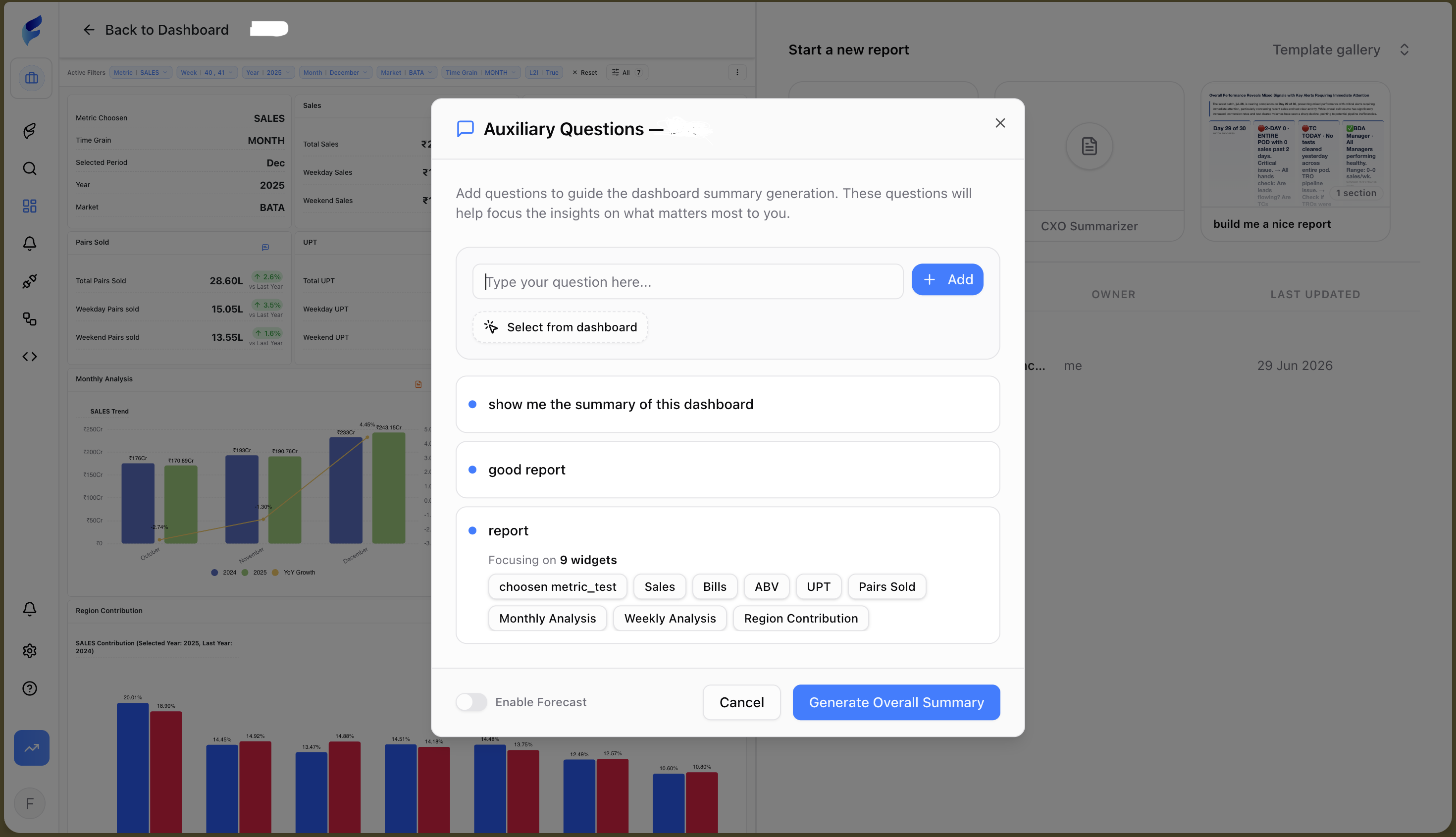
- Pick one of the suggested questions, or write your own.
- Optionally click Select tables from dashboard to focus the summary on specific widgets instead of the whole dashboard.
- Optionally turn on Forecast if you want projected numbers included.
- Click Generate.
Option 3: Start from a template
Templates are saved report layouts (yours, your org's, or shared by everyone).
- Click a template card, or click Template gallery to see the full list.
- Click the template you want.
The agent regenerates every section of that template against your current dashboard data.
Build out the report
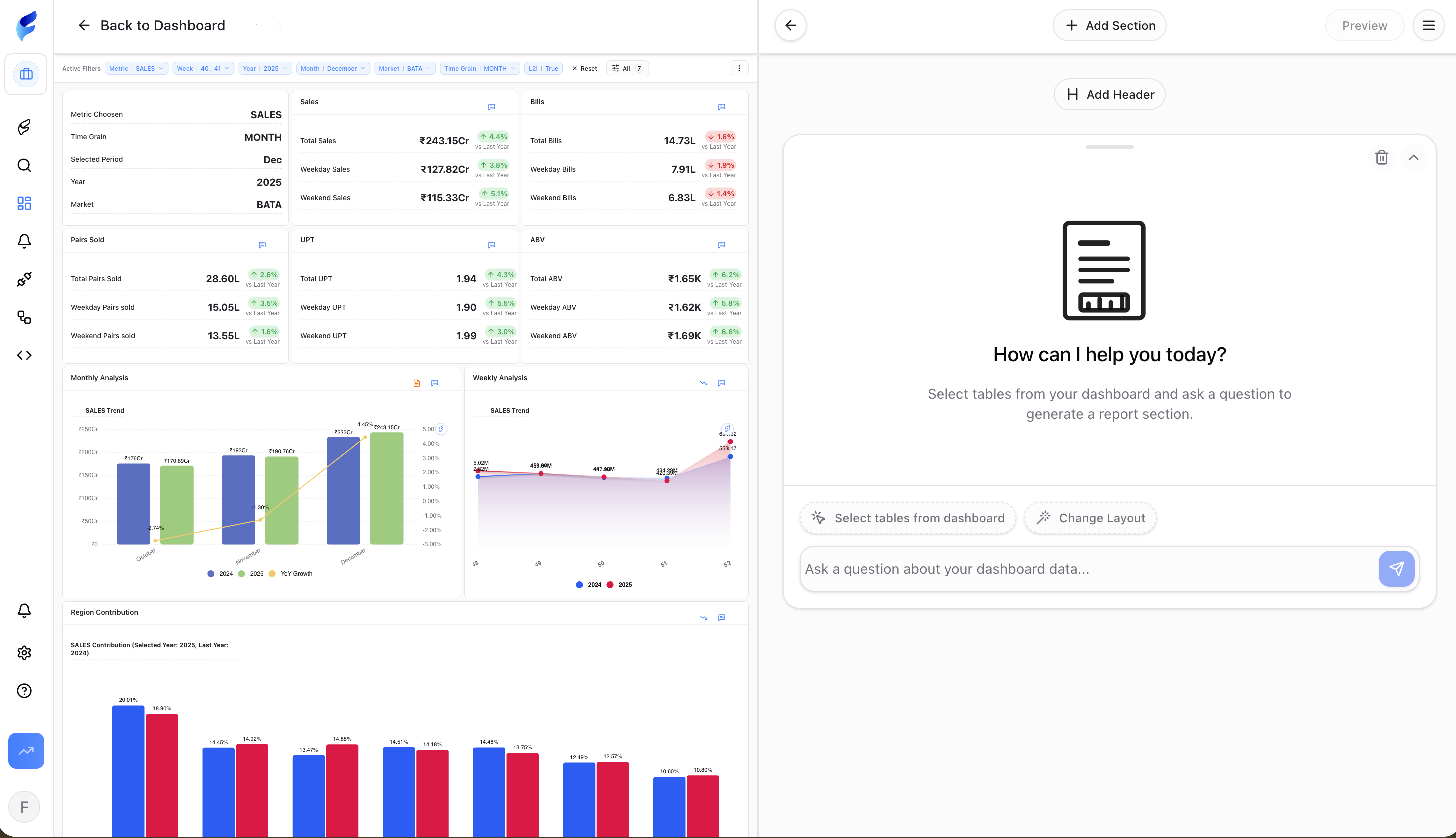
Once a report has at least one section, the builder view opens.
Add a section
Click Add Section at the top of the report, then type a question into that section's message box the same way you did to start the report.
Focus a section on specific dashboard data
Click Select tables from dashboard on a section to enter selection mode, then click the widgets on the left-hand dashboard pane you want that section to use. Send your message once you're done selecting — FireAI asks you to confirm the selection first if you send while still in selection mode.
Refine a section after it's generated
- Select any text or chart inside a generated section — a Reply button appears near your selection. Click it, then describe the change you want (e.g. "make this a bar chart" or "explain why this number dropped").
- Click Change Layout on a section to describe how you'd like it rearranged instead.
Rearrange sections
Drag a section's left/right edges to resize its width, or its top/bottom edge to resize height. Drag the section itself to reorder it on the page. Layout changes save automatically.
Add a title
Click Add Header above the sections and type a title for the report.
Preview and export
- Click Preview to see the report stitched together as one continuous document.
- Click Download PDF (from the Preview view, or the ⋯ menu) to export it.
Save the report as a template
Open the ⋯ menu and choose Save Template, then give it a name and choose who can use it:
- For me — only you
- For my org — everyone in your organisation
- For everybody — all users across all orgs
Find a report again
Reports you've generated show up on the CXO Agent start screen for that dashboard, grouped by Today, Previous 30 days, and Earlier. Click a report to reopen it, or hover a row to rename or delete it.
Troubleshooting
- A section fails to synthesize. Try resending the same question — it usually succeeds on retry. If it keeps failing, narrow the question or select fewer widgets.
- Generation seems stuck. Click the send button again (it turns into a cancel button while loading) to stop the request, then retry.
- A template doesn't show up in the gallery. Templates with no saved sections are hidden — save the template again after adding at least one section to your report.
FAQ
What is the CXO Agent in FireAI?
It's FireAI's AI report builder — you describe the report you want in plain language, and it assembles KPIs, charts, and tables from the data already on your dashboard, with commentary written for you.
How do I create a report from my dashboard in FireAI?
Open the dashboard, click the report icon in the toolbar to launch the CXO Agent, then either start from a blank report, use the CXO Summarizer, or load a template. See the "Start a new report" section above for the full walkthrough.
Do I need to connect a new data source to build a report?
No. The CXO Agent reuses the same widgets and data as the dashboard you opened it from — there's nothing new to connect or import.
Do I need to know SQL, Excel, or chart design to build a report?
No. You describe what you want in a sentence — the agent picks the chart type, pulls the data, and writes any commentary. There's no formula-building or manual chart configuration involved.
What's the difference between a blank report and the CXO Summarizer?
A blank report starts empty and builds up as you ask questions section by section. The CXO Summarizer generates a full summary in one step from a suggested or custom question, optionally focused on specific widgets and including a forecast.
Can I build a report around specific KPIs or widgets instead of the whole dashboard?
Yes. Click Select tables from dashboard on any section (or in the CXO Summarizer) to focus that section's output on just the widgets you pick, instead of the entire dashboard.
Can a report include forecasted numbers, not just historical data?
Yes. Turn on the Forecast toggle in the CXO Summarizer to include projected numbers alongside the historical data.
Can I edit a report or a chart after it's generated?
Yes. Select any text or chart in a section to reply with an edit instruction, use Change Layout to rearrange a section, or drag section edges to resize and reorder them.
Can I save a report and reuse its layout for other dashboards?
Yes. Save any report as a template and choose whether it's visible only to you, your organisation, or everybody — then load it from the template gallery to regenerate the same layout against new data.
Who can see or use a report template I save?
You choose at save time: For me keeps it private, For my org shares it with your organisation, and For everybody makes it available across all orgs.
Can I export a FireAI report as a PDF?
Yes. Click Preview to see the full report as one document, then Download PDF from the Preview view or the ⋯ menu.
Where can I find reports I've already created?
On the CXO Agent start screen for that dashboard, grouped by Today, Previous 30 days, and Earlier. Click one to reopen it, or hover a row to rename or delete it.