
Integrations
Database
This guide will help you connect your databases (Postgres, MySQL, Oracle, MS-SQL, ClickHouse) with FireAI. Follow the steps carefully to complete the setup.
Updated September 11, 2026
Prerequisites
- Active FireAI account (with login credentials).
- Database details:
- Host / Server Name
- Port
- Database Name
- Username & Password
- Internet connection.
- Admin/DBA access to the database.
Setup steps
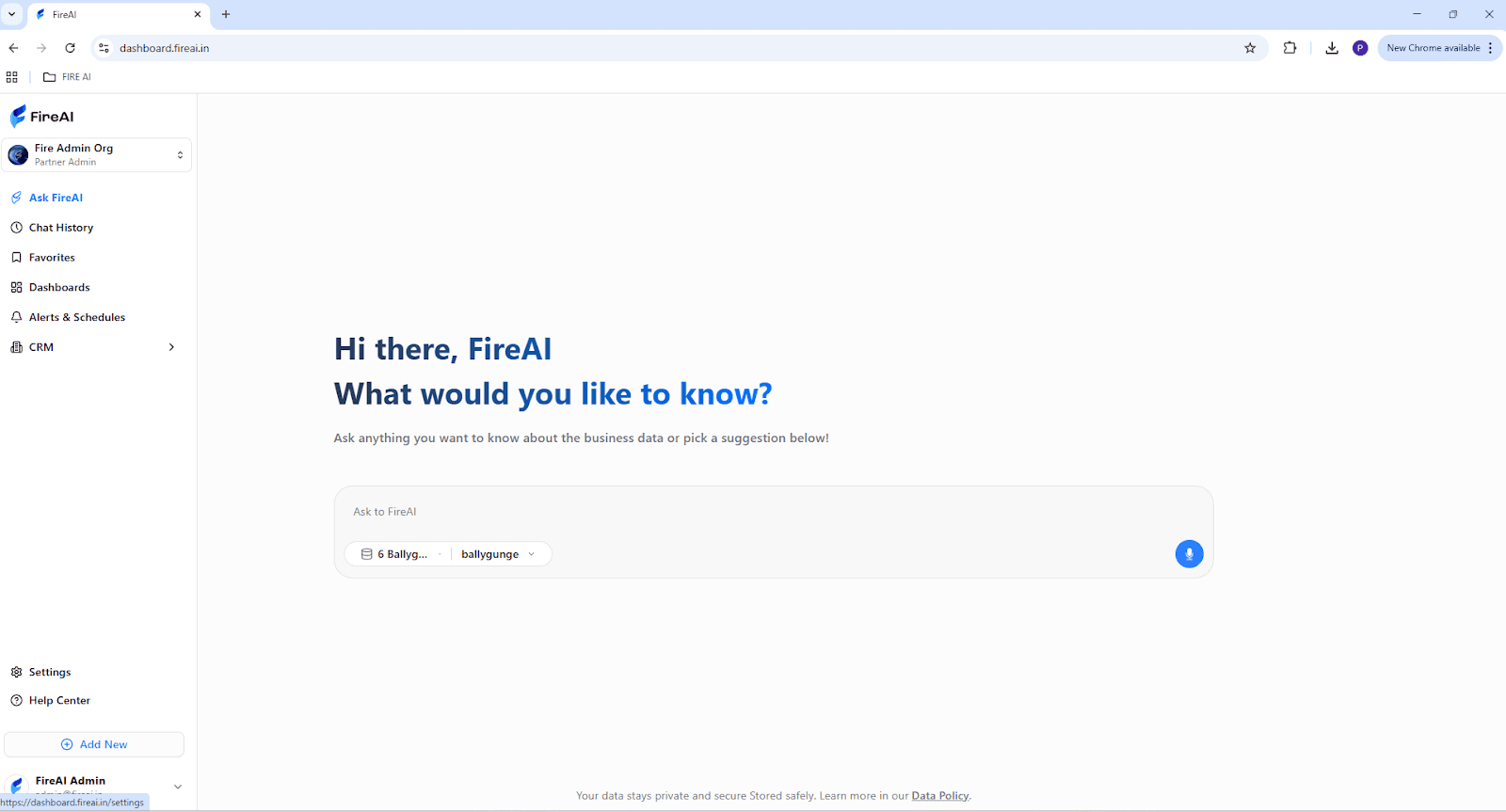
Step 1: Open FireAI
- Log in to your FireAI Home Page.
Step 2: Access Data Integration
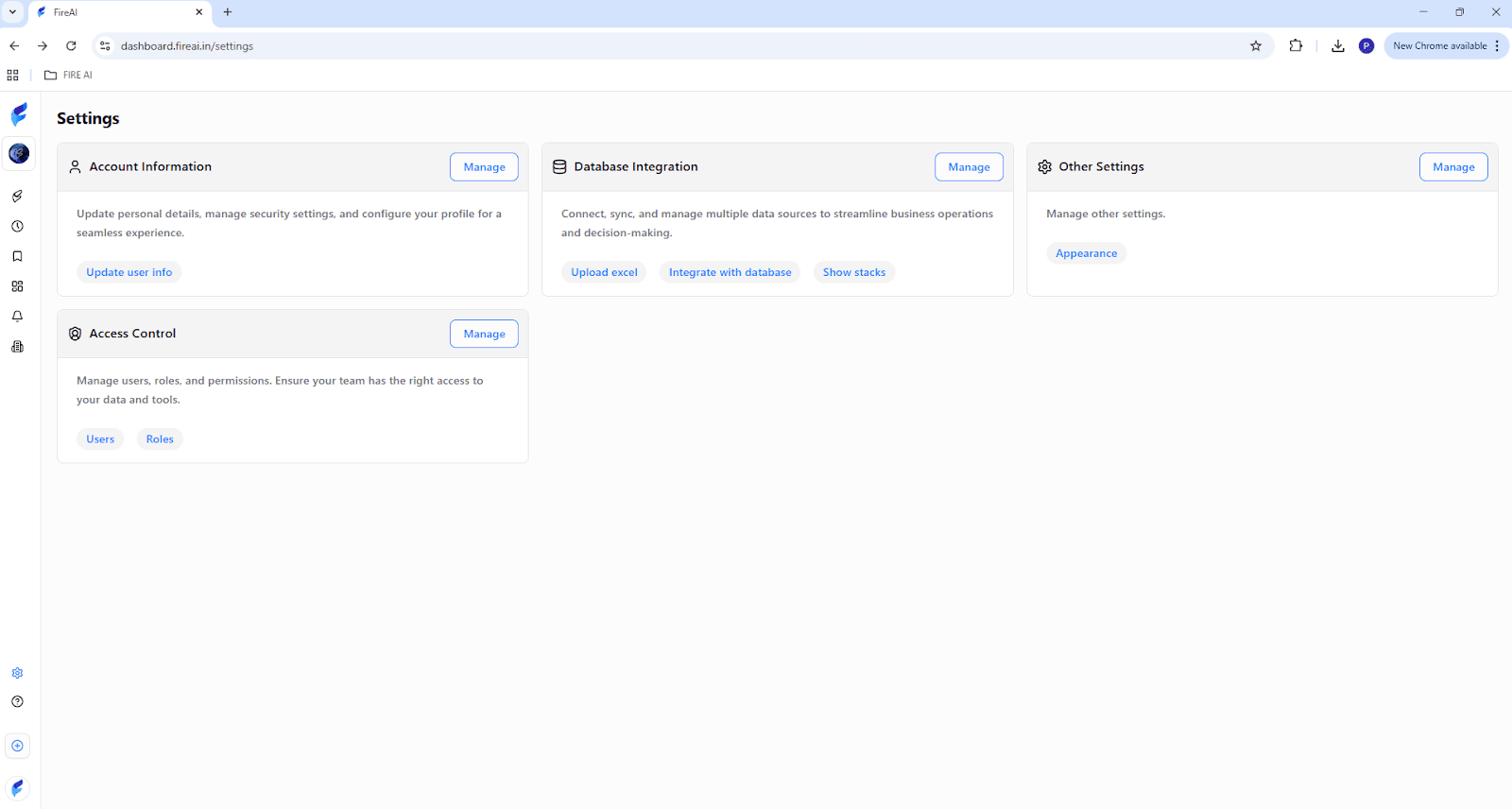
- Go to Settings (bottom-left corner).
Under Data Integration, click Manage.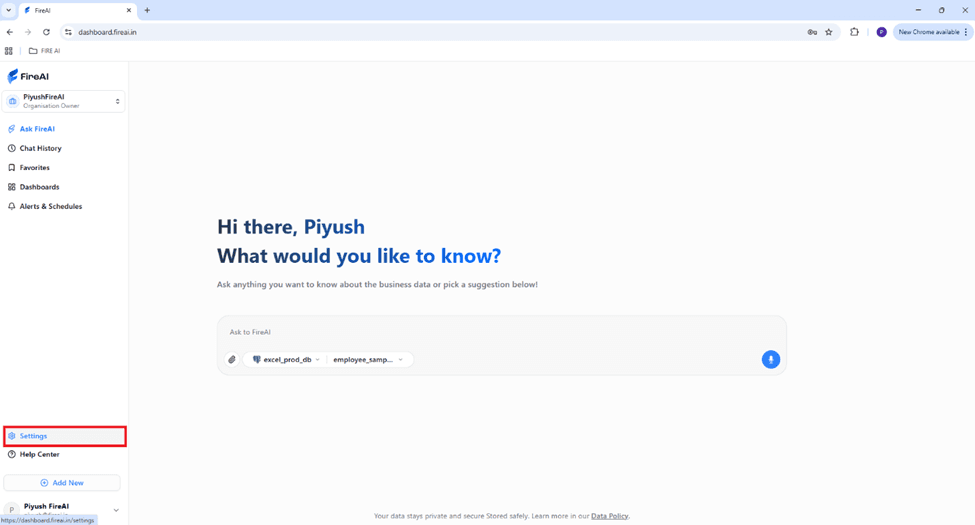
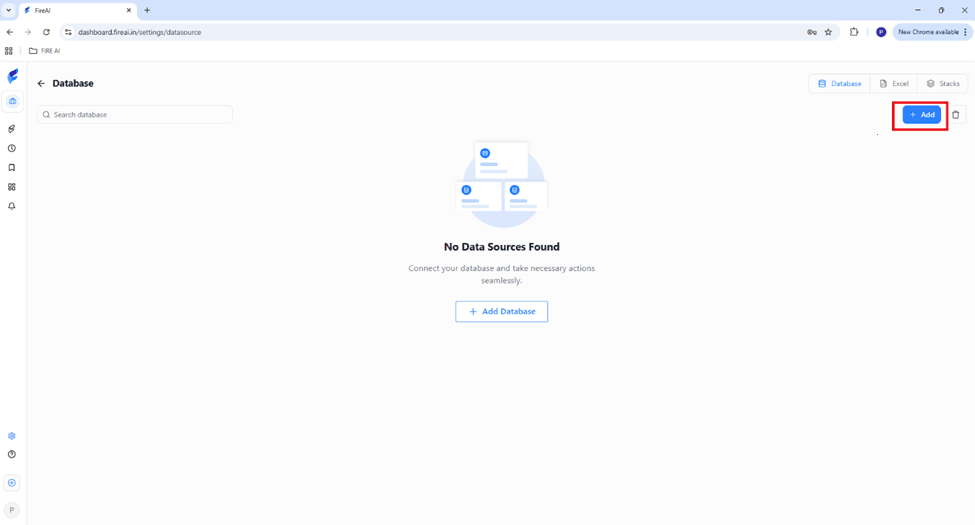
Step 3: Add New Data Source
- Click Add.
Step 4: Enter Database Details
- Host / Server
- Port
- Database Name
- Username & Password
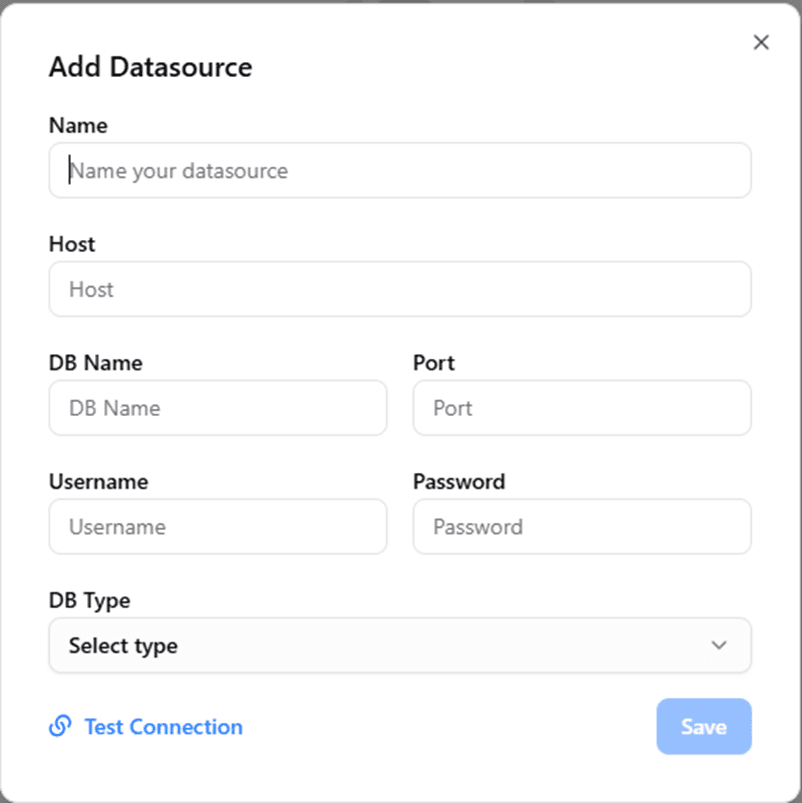
Step 5: Choose Database Type
From the dropdown, select your database type :
- PostgreSQL
- MySQL
- Oracle
- MS-SQL
- ClickHouse
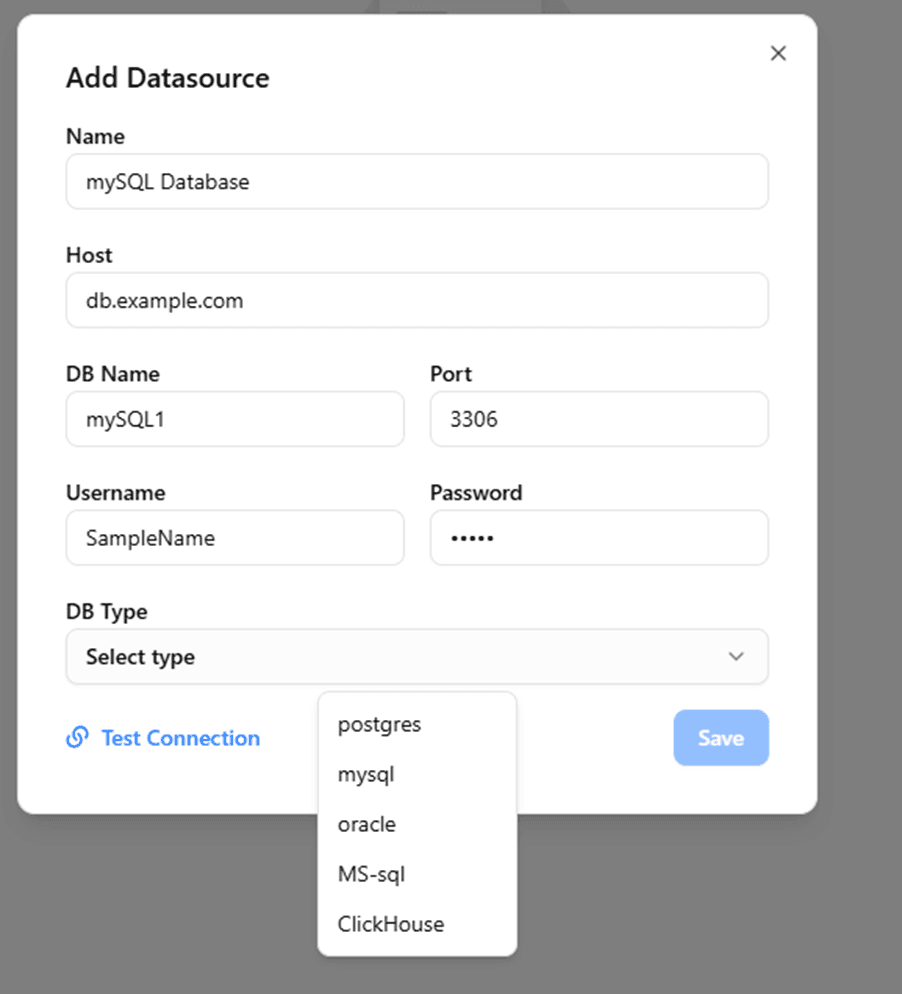
Step 6: Test Connection
- Click Test Connection to verify database connectivity
Step 7: Confirm Connection
- Once the test passes, click Add Connection.
- Your database is now successfully connected to FireAI!
Troubleshooting
- Connection failed? Check if DB port is open and reachable from your network.
- Invalid credentials? Verify username/password.
- SSL issues? Enable SSL in DB settings if required.
- Timeouts? Ensure firewall allows outbound/inbound access.