
Integrations
Tally
This manual will guide you through connecting your Tally account with FireAI using FireSync. By the end of this setup, your Tally data will sync seamlessly into FireAI, so you can work without manual imports.
Updated September 11, 2026
Prerequisites
- An active FireAI account (with valid login credentials)
- Tally installed and running on your computer
- A stable internet connection
- Admin privileges on your computer (required for installation)
Setup steps
Step 1: Log into FireAI
- Log in to your FireAI Home Page.
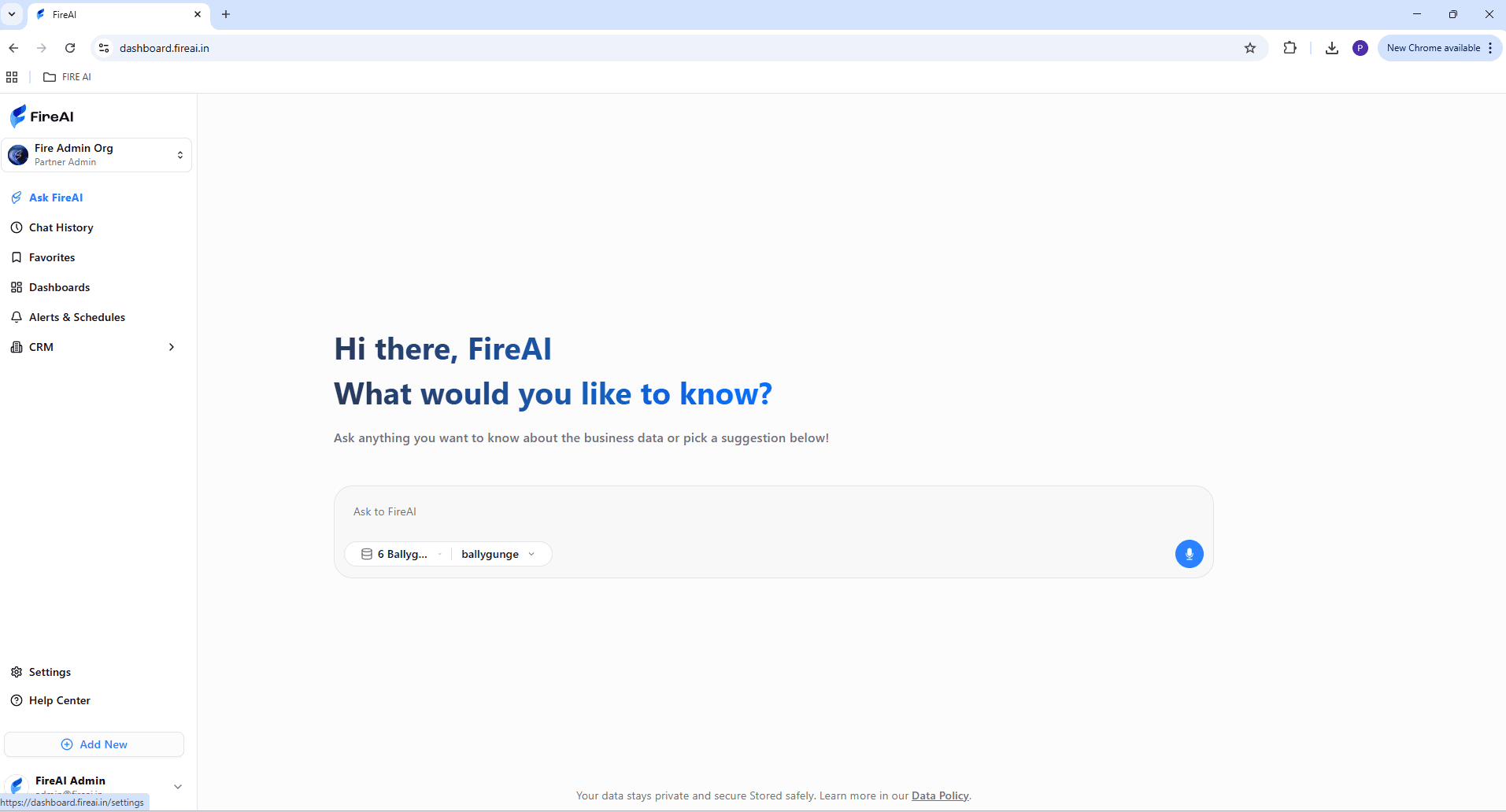
Tip: Stay logged in with your primary browser to avoid repeated login prompts.
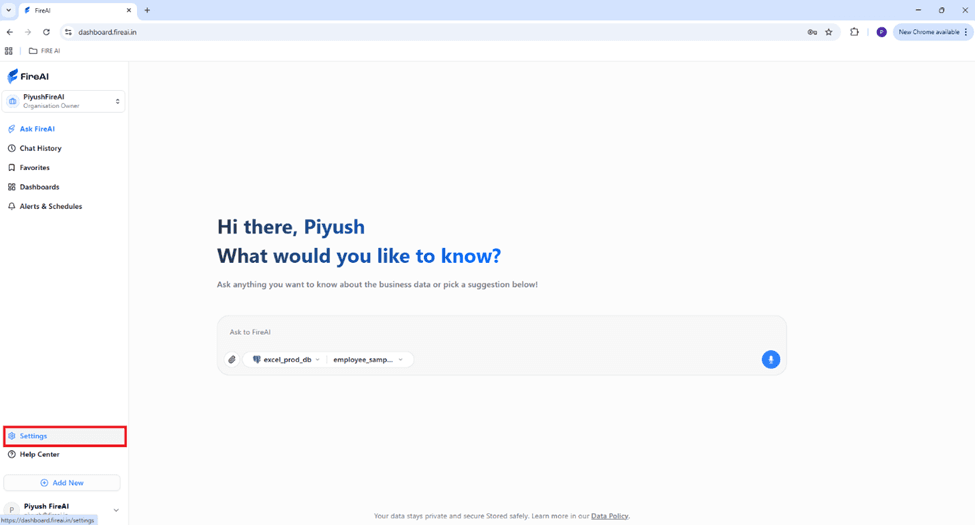
Step 2: Access Data Integration
- Go to Settings (bottom-left corner).
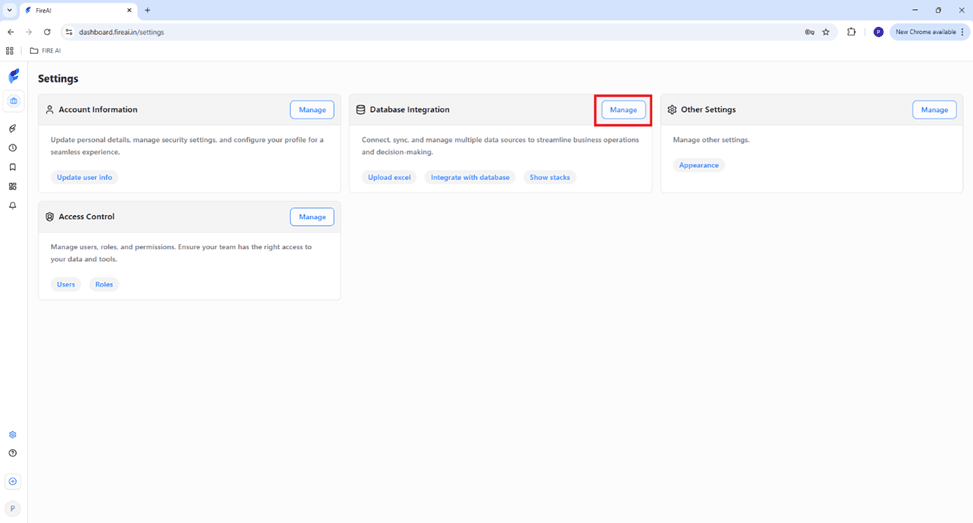
- Under Data Integration, click Manage.
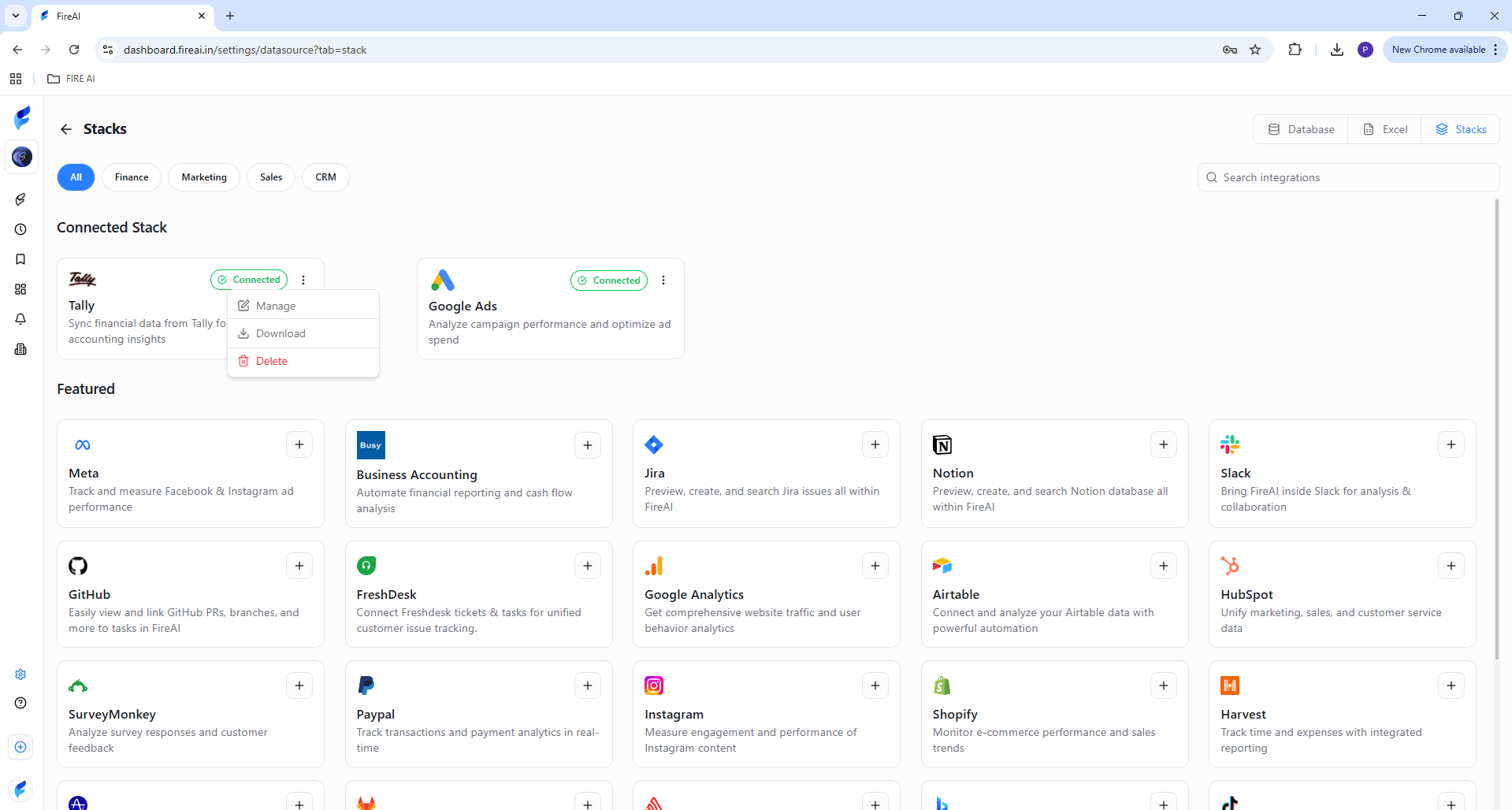
Step 3: Download FireSync
- On the top-right corner, click Stacks.
- Find Tally and click Download.
Step 4: Install FireSync
- The FireSync setup window will appear.
- Choose installation type (for you / all users). Click Next.
- Select a destination folder → click Install.
- Wait for installation to complete.
- Click Finish.
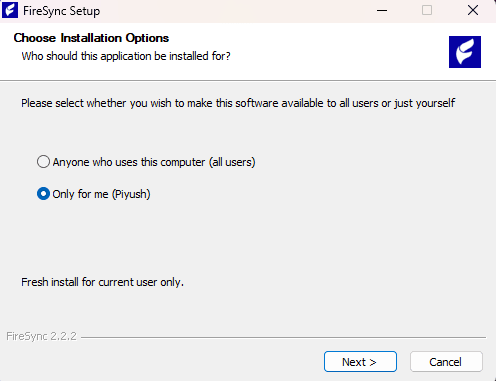
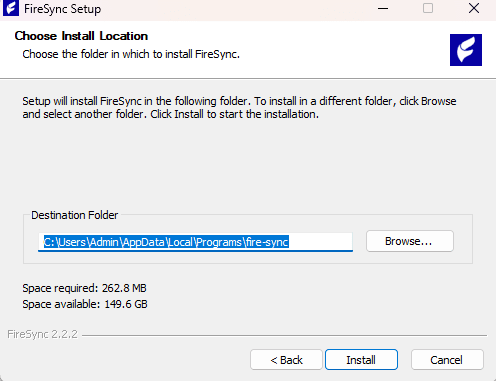
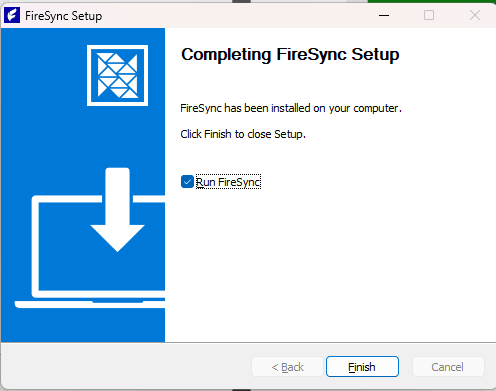
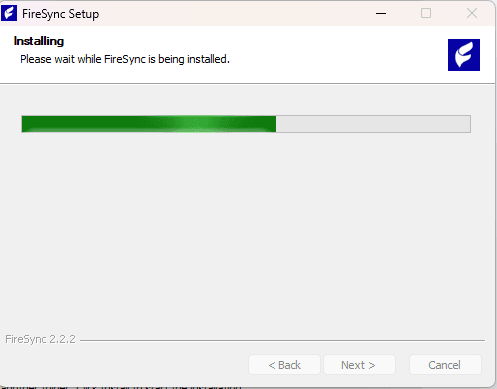
Note: If you see a Windows security alert, select Run anyway — FireSync is a verified application. Avoid repeated login prompts.
Step 5: Login to FireSync
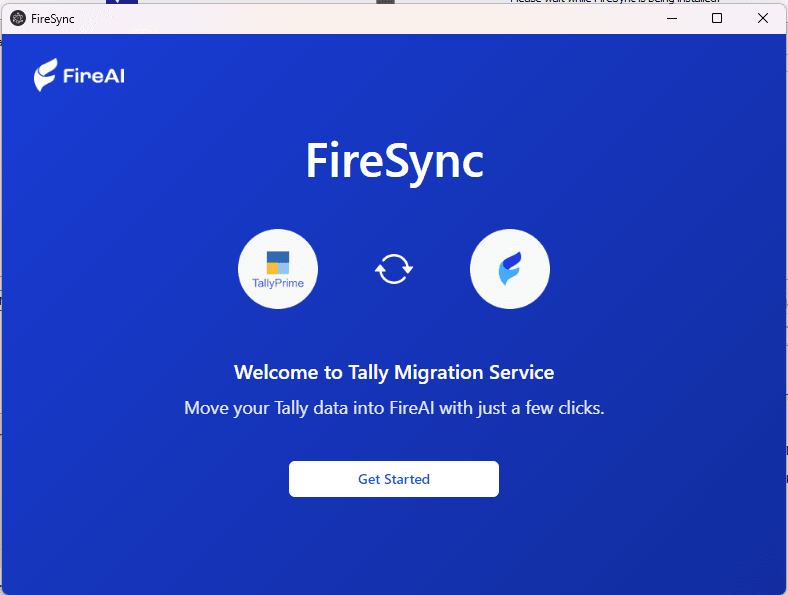
- FireSync will open automatically. Click Get Started.
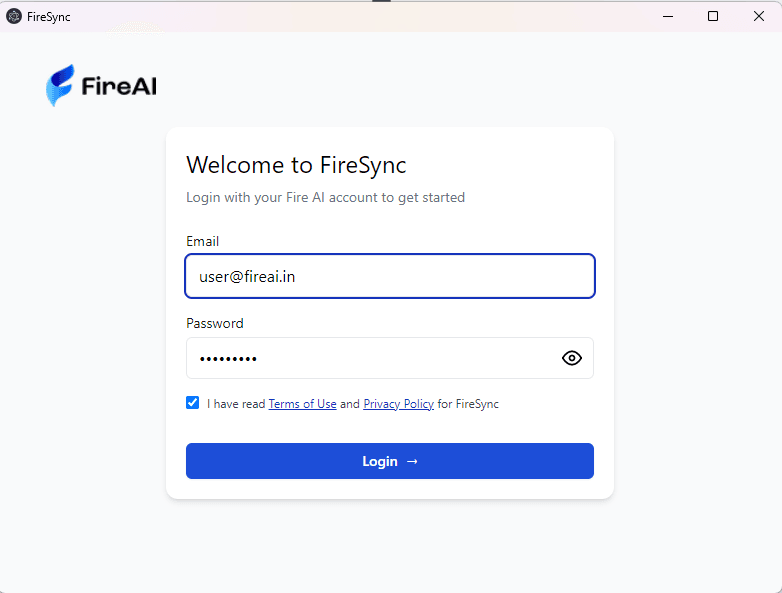
- Enter your FireAI credentials to log in.
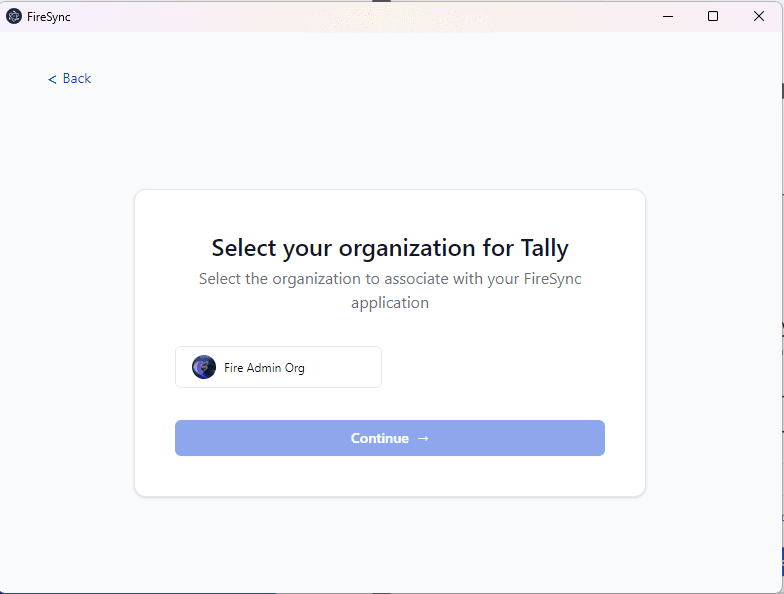
- Select your organization and click Continue.
Step 6: Set Sync Schedule
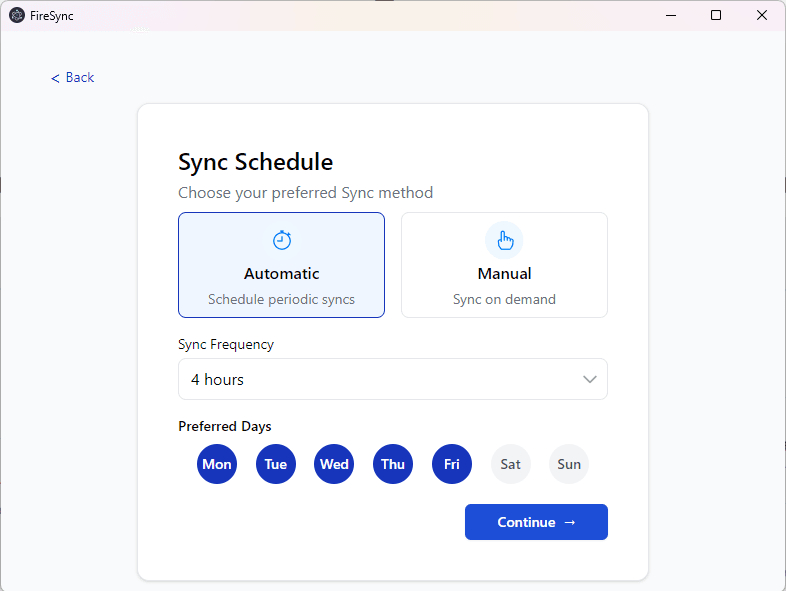
Tip: Start with hourly syncs for testing, then adjust based on your workflow.
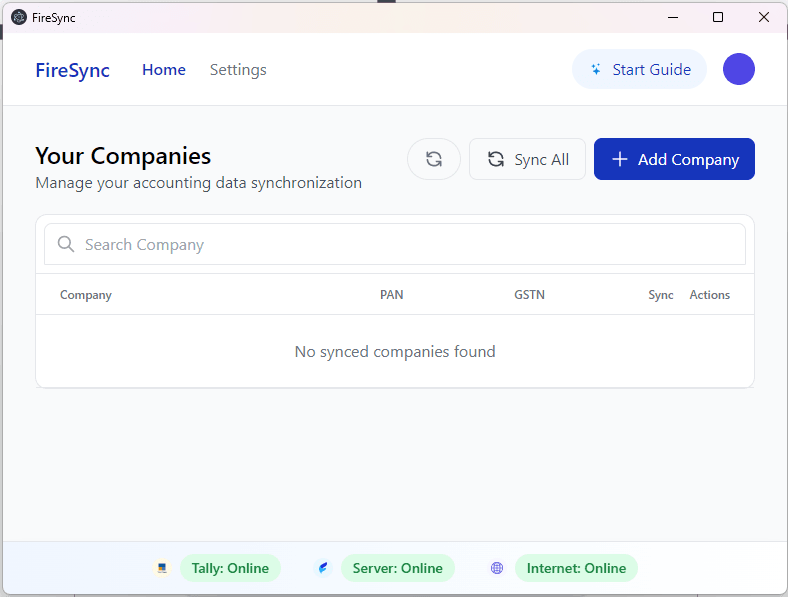
Step 7: Add Your Company from Tally
- Click Add Company (top-right).
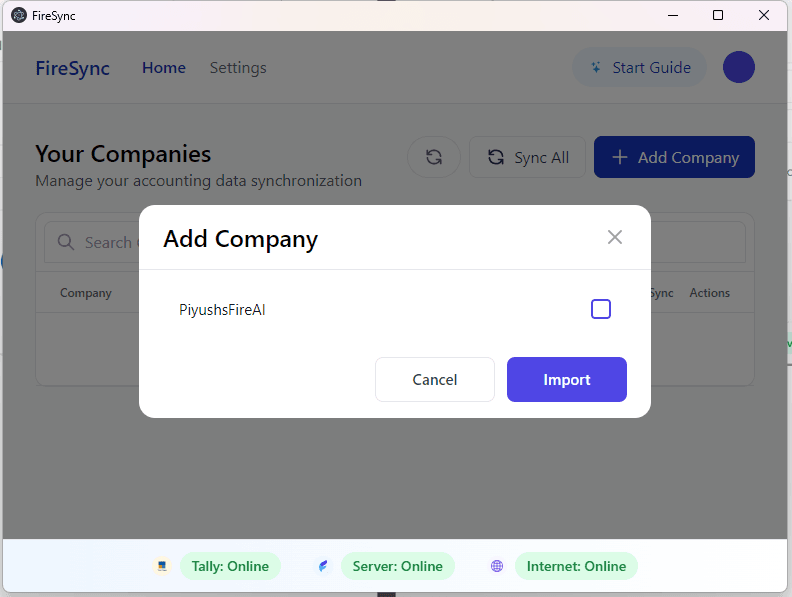
- Select your company → check the box → click Import.
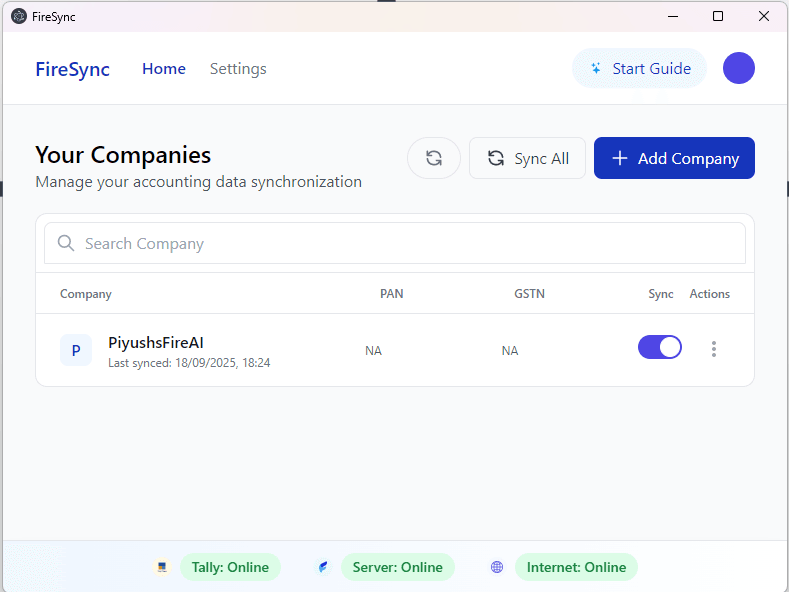
Step 8: Confirmation
- Your company will now appear in FireSync.
- Your Tally is successfully connected to FireAI!
Troubleshooting
- Login issues: Verify username/password
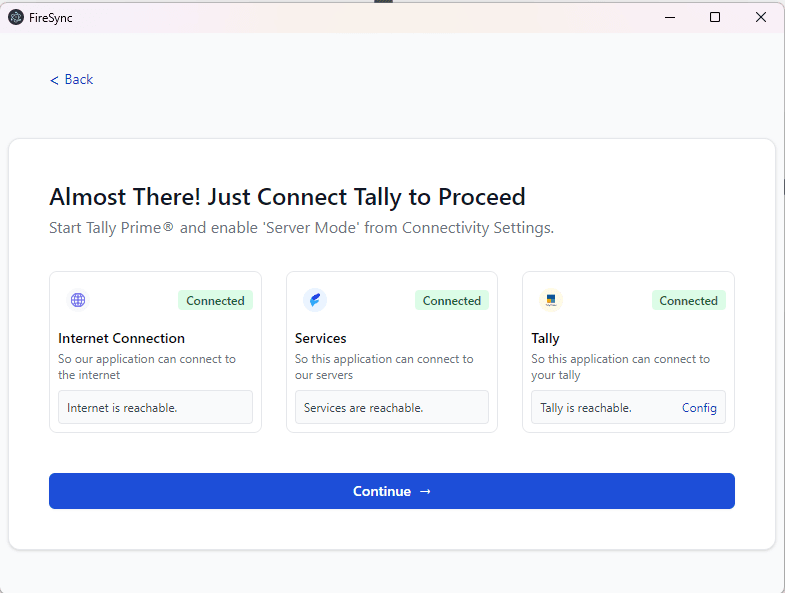
- Company not showing: Ensure Tally is running and accessible
- Sync errors: Check internet connection, restart FireSync
Tip: Restart both Tally and FireSync whenever you encounter unusual errors.