
Integrations
Tally
Learn how to connect Tally with FireAI using FireSync, configure the integration and sync your accounting data without repeated manual imports.
Updated October 26, 2026
Prerequisites
- An active FireAI account (with valid login credentials)
- Tally installed and running on your computer
- A stable internet connection
- Admin privileges on your computer (required for installation)
Setup steps
Step 1: Log into FireAI
- Log in to your FireAI Home Page.
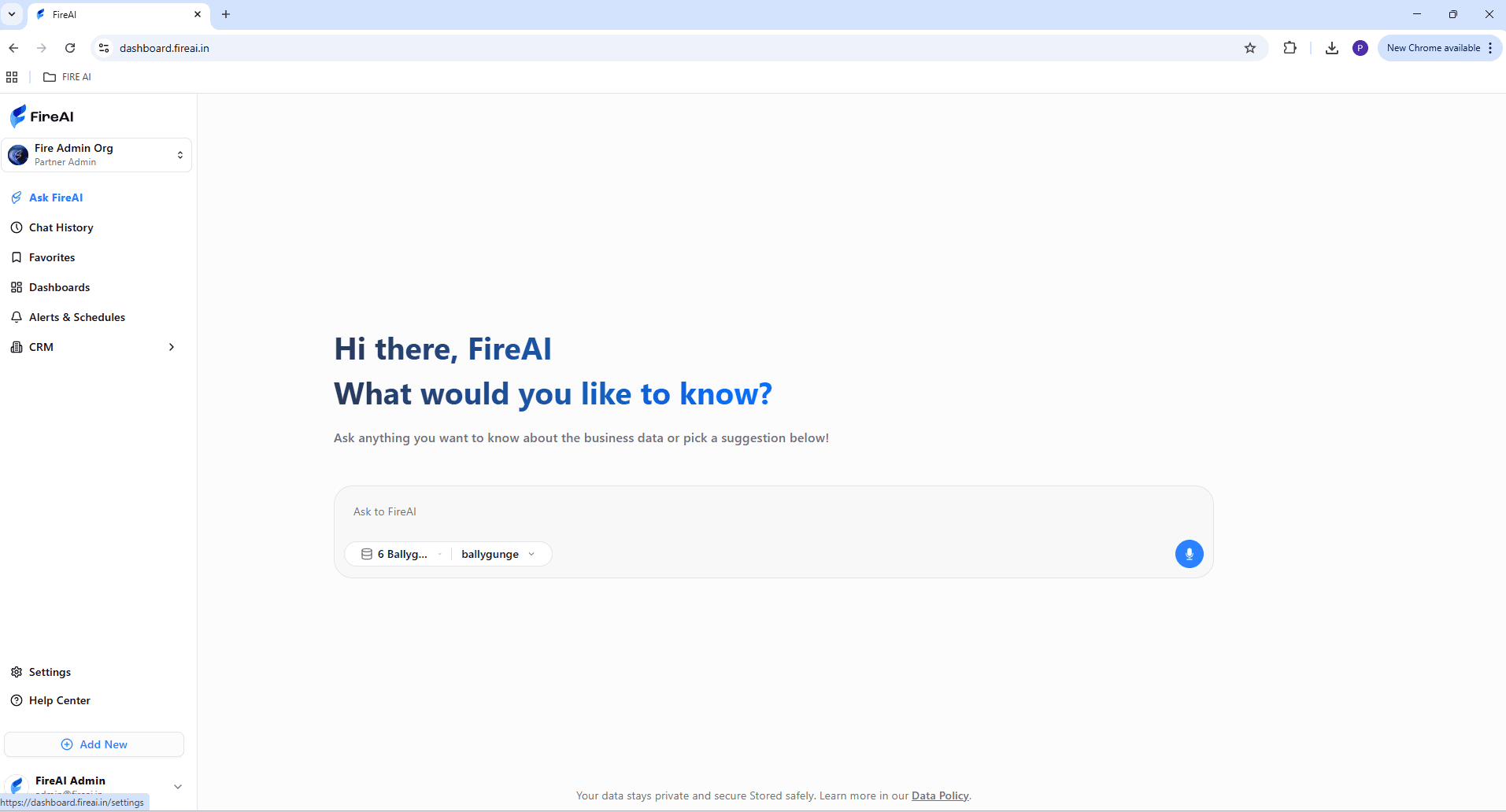
Tip: Stay logged in with your primary browser to avoid repeated login prompts.
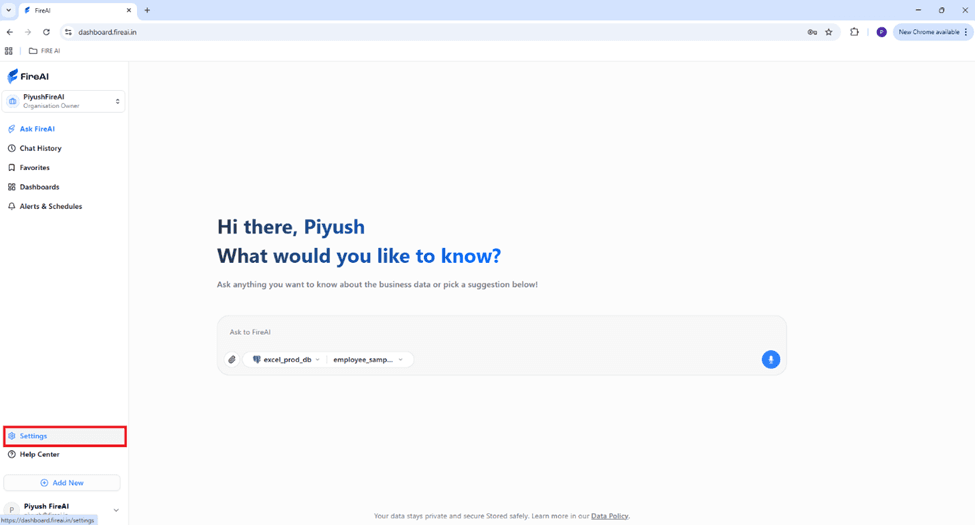
Step 2: Access Data Integration
- Go to Settings (bottom-left corner).
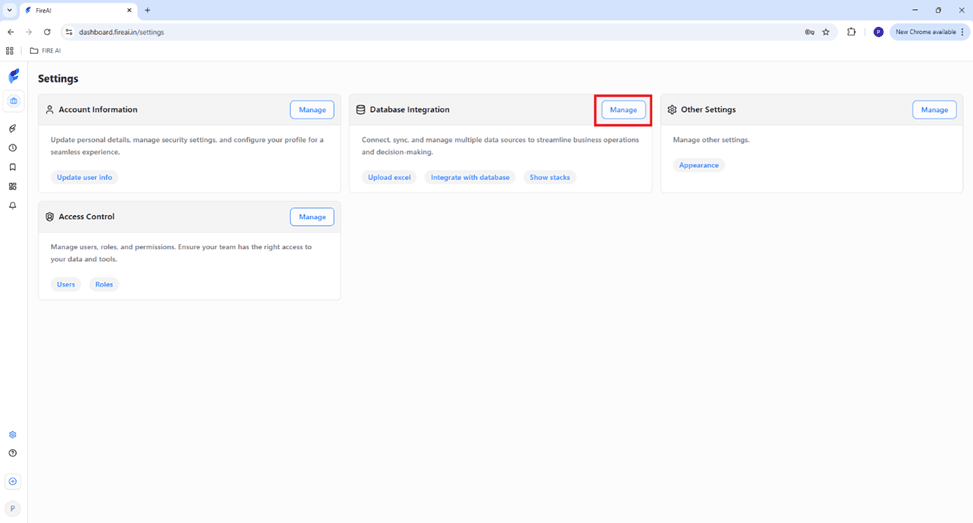
- Under Data Integration, click Manage.
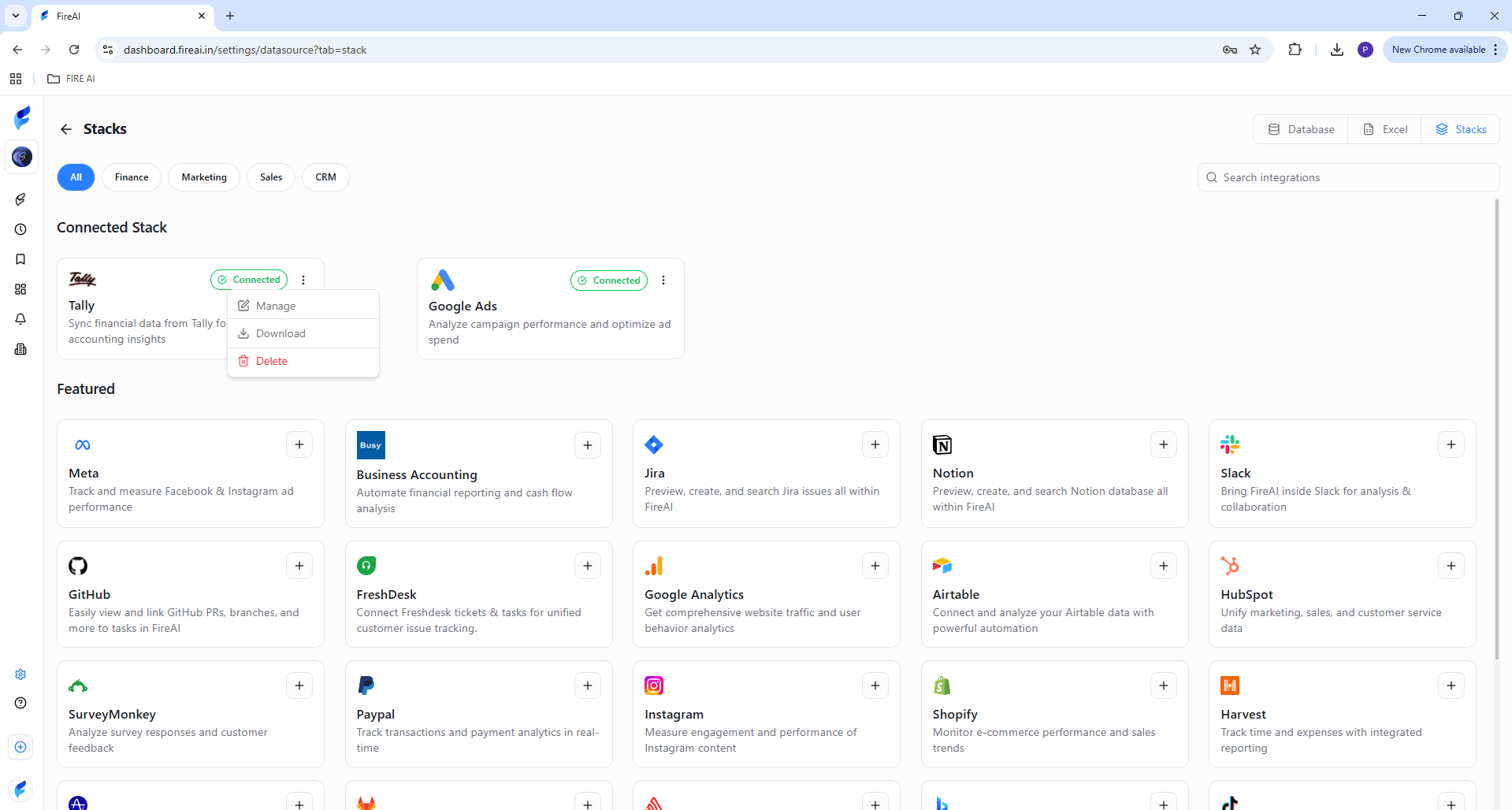
Step 3: Download FireSync
- On the top-right corner, click Stacks.
- Find Tally and click Download.
Step 4: Install FireSync
- The FireSync setup window will appear.
- Choose installation type (for you / all users). Click Next.
- Select a destination folder → click Install.
- Wait for installation to complete.
- Click Finish.
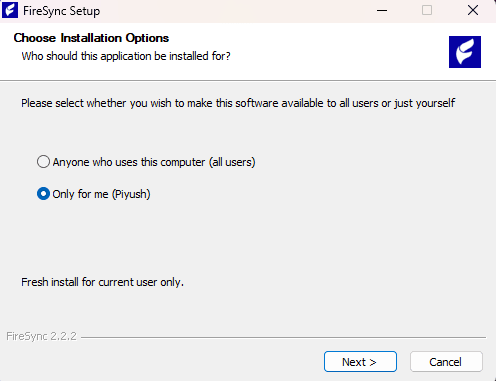
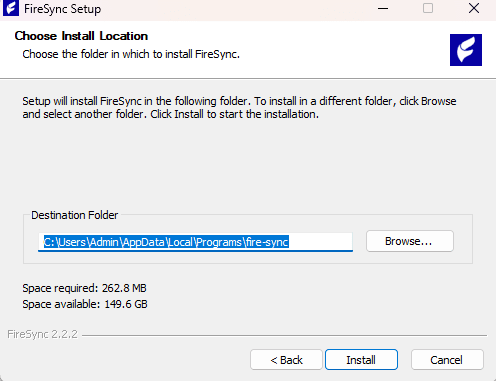
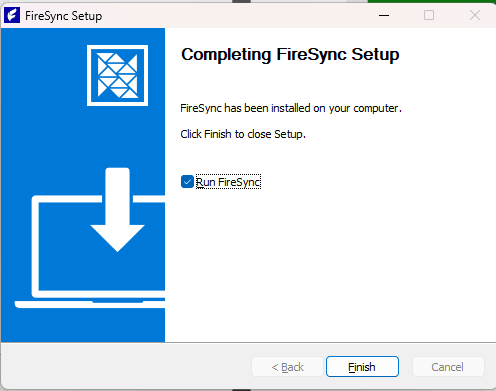
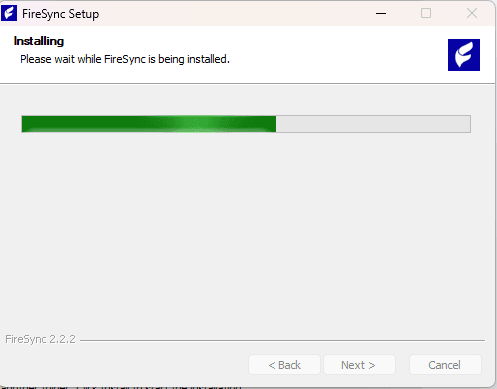
Note: If you see a Windows security alert, select Run anyway — FireSync is a verified application. Avoid repeated login prompts.
Step 5: Login to FireSync
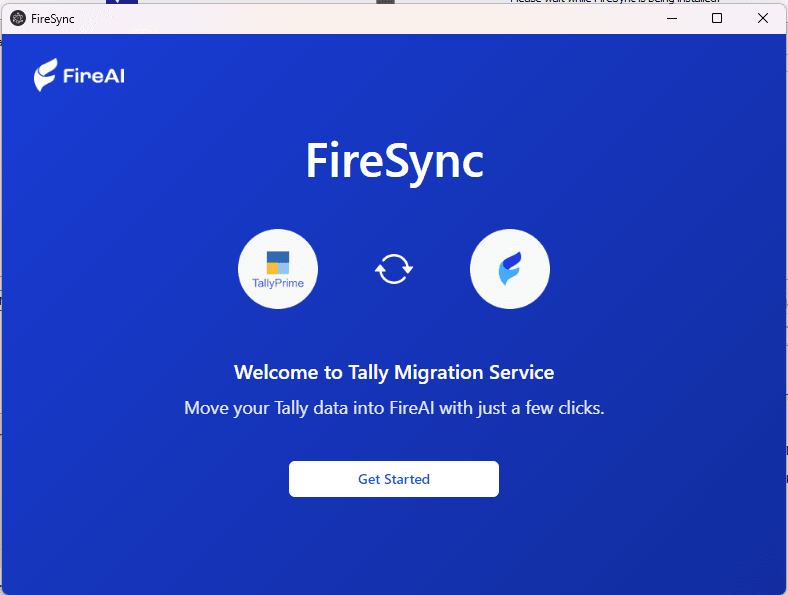
- FireSync will open automatically. Click Get Started.
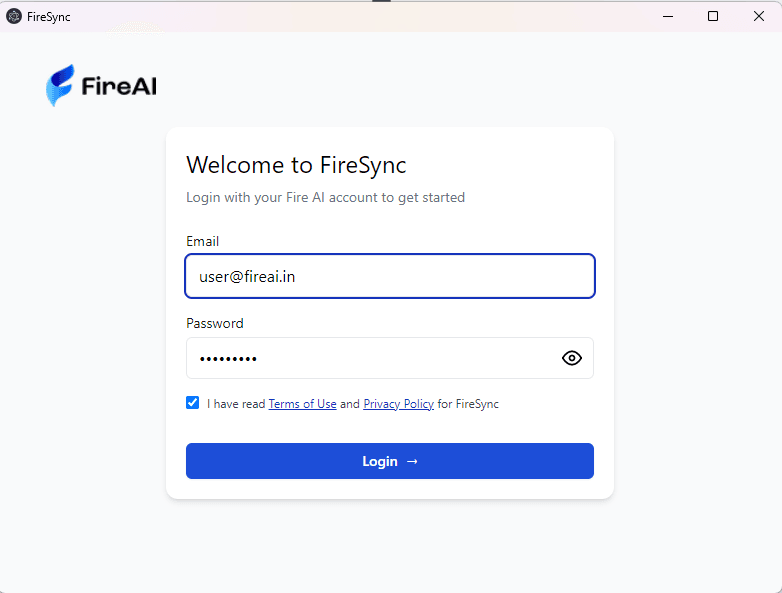
- Enter your FireAI credentials to log in.
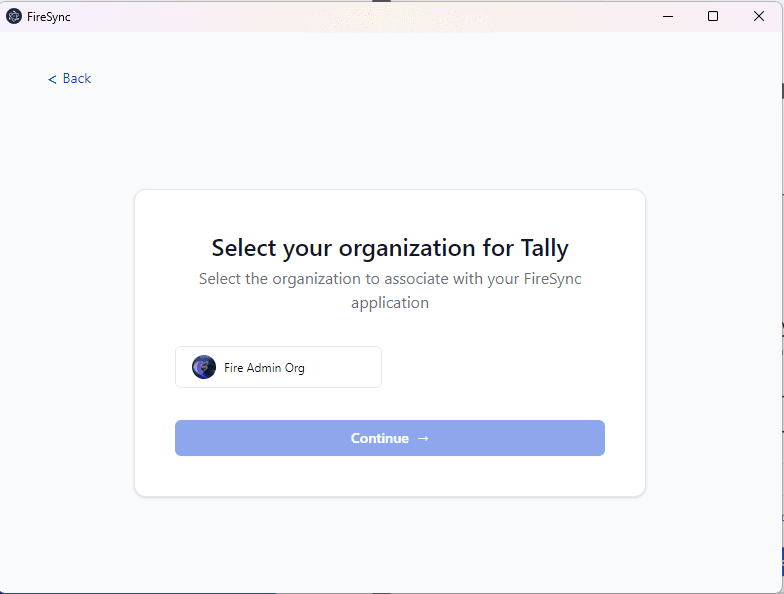
- Select your organization and click Continue.
Step 6: Set Sync Schedule
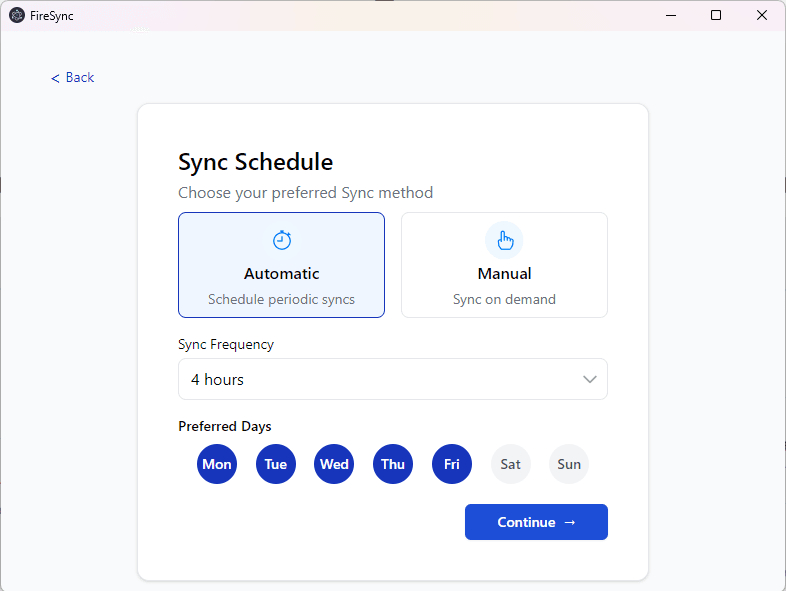
Tip: Start with hourly syncs for testing, then adjust based on your workflow.
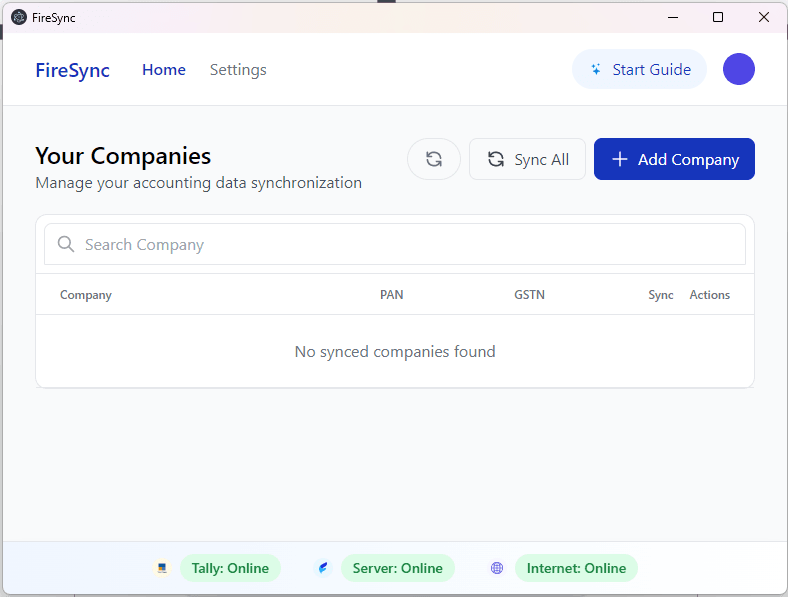
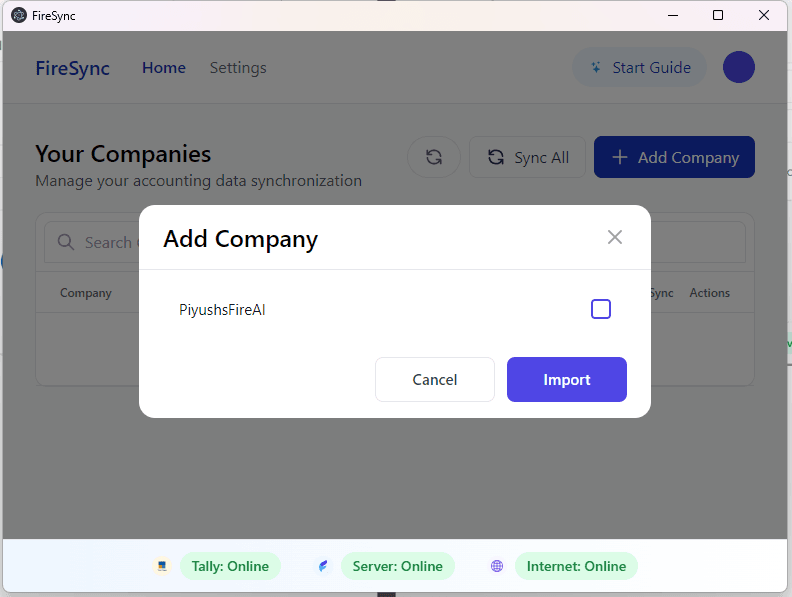
Step 7: Add Your Company from Tally
- Click Add Company (top-right).
- Select your company → check the box → click Import.
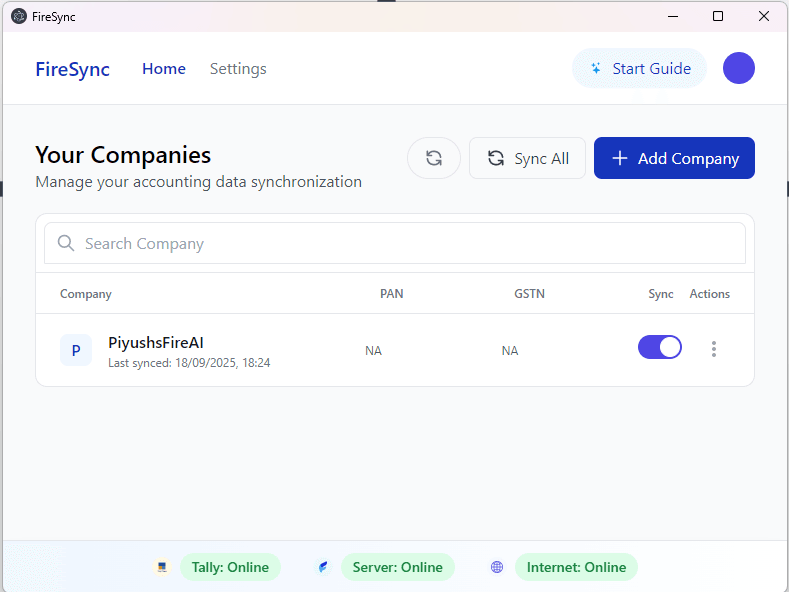
Step 8: Confirmation
- Your company will now appear in FireSync.
- Your Tally is successfully connected to FireAI!
Troubleshooting
- Login issues: Verify username/password
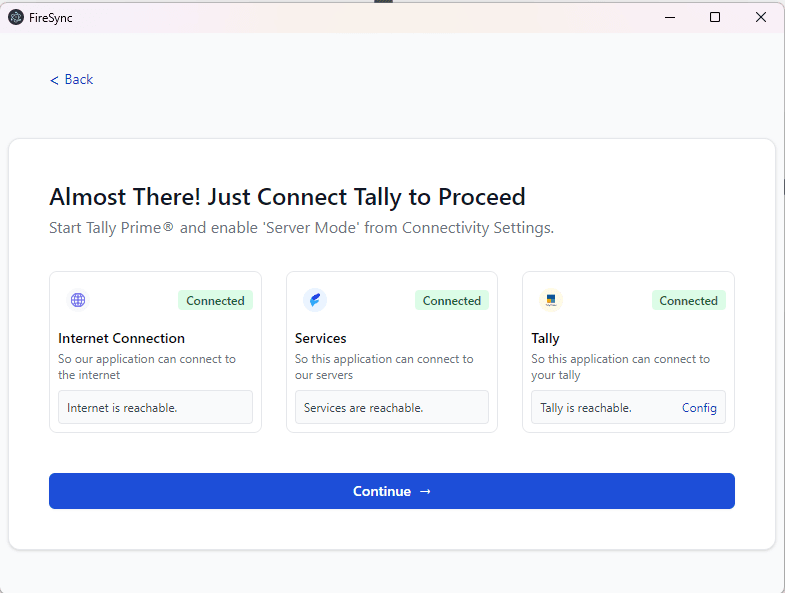
- Company not showing: Ensure Tally is running and accessible
- Sync errors: Check internet connection, restart FireSync
Tip: Restart both Tally and FireSync whenever you encounter unusual errors.