
Step 1 · Prepare your data
Sign in and find your way around
Sign in to FireAI at app.fireai.in with email, Google or Microsoft, then learn where Ask FireAI, Dashboards, Alerts & Schedules, Connectors and Settings live in the left menu.
Updated September 30, 2026
Get into FireAI and learn where the things you need live.
Sign in
- Open your browser and go to app.fireai.in.
- Type your work email and password and select Login, or select Google or Microsoft if your company uses them.
- You land on the home page. Move your mouse over the left edge of the screen to open the menu.
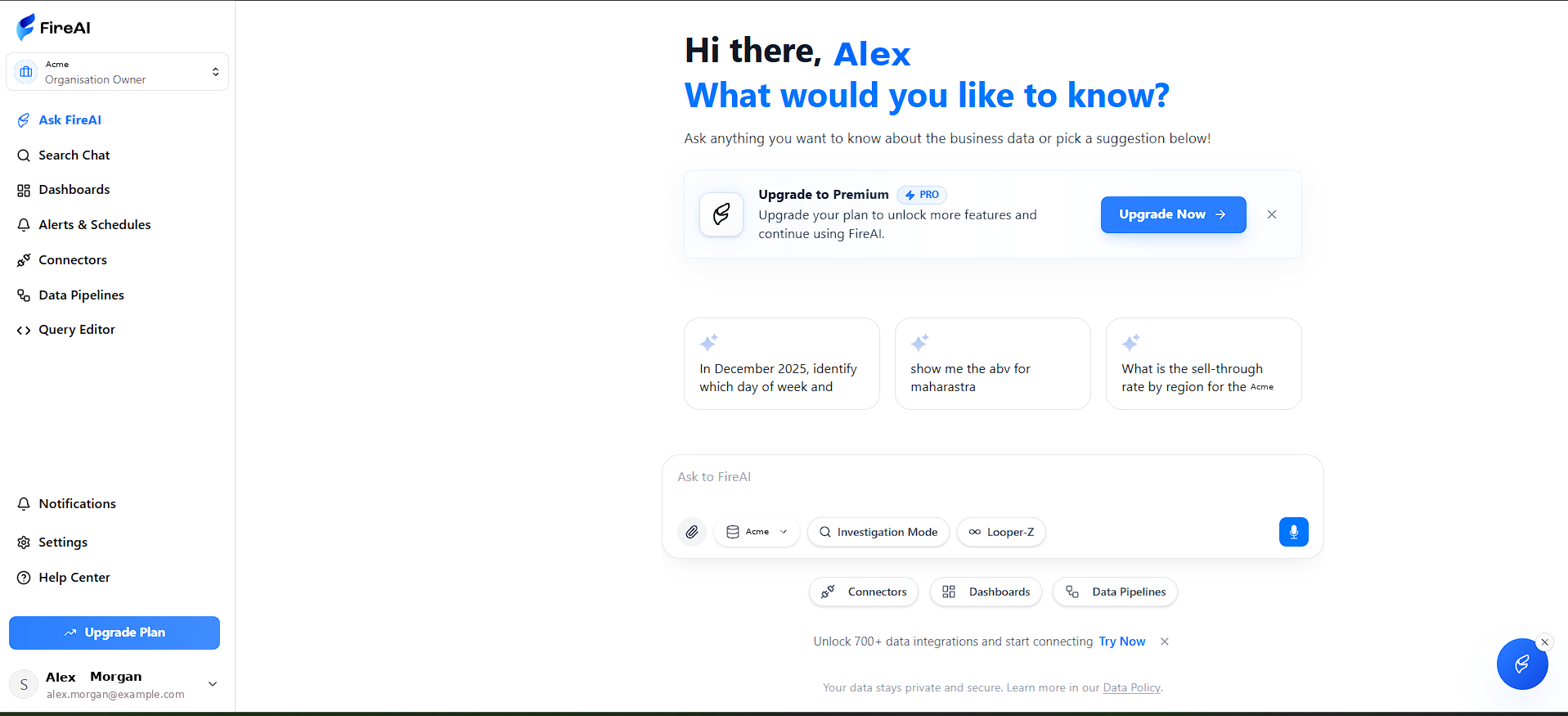
The left menu
| Menu item | What it is for | Step |
|---|---|---|
| Ask FireAI | Ask questions in plain words | 13 |
| Dashboards | Your widgets, dashboards and workspaces | 5 to 9 |
| Alerts & Schedules | Automatic reports and warnings | 14 |
| Connectors | Where your data comes from | 2 and 4 |
| Settings (lower left) | Knowledge base and who sees what | 10 to 12 |
You should now see
The Hi there greeting with your name, and the menu on the left.
Stuck?
If you cannot sign in, use Forgot your password? on the sign-in page, or ask whoever invited you to FireAI.