
Step 9 · Build
Put your widgets on a dashboard
Create a FireAI dashboard, add saved widgets, then drag and resize the tiles into a layout. Viewers can use the Filters button to change the year.
Updated September 30, 2026
A dashboard is a page of widgets. Skip this step if your team only wants to ask FireAI questions.
Create the dashboard
- Select Dashboards in the left menu, stay on the Dashboards tab and select New Dashboard.
- Type a name, choose your Workspace, and create it. The empty dashboard opens.
- Select the three-dot menu at the top right, then Edit Dashboard, then Add Widget.
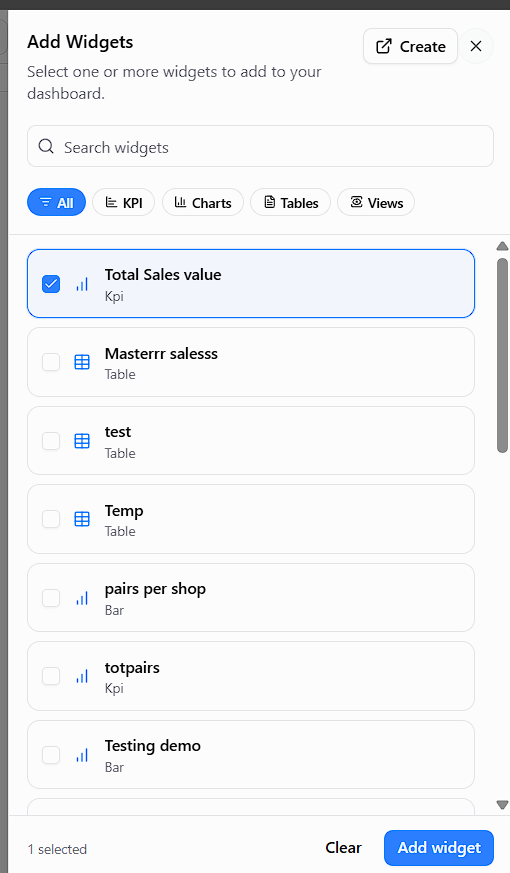
- Tick the widgets you want and select Add widget.
Arrange the tiles
- Drag each tile by its handle to move it. Drag its bottom-right corner to resize it.
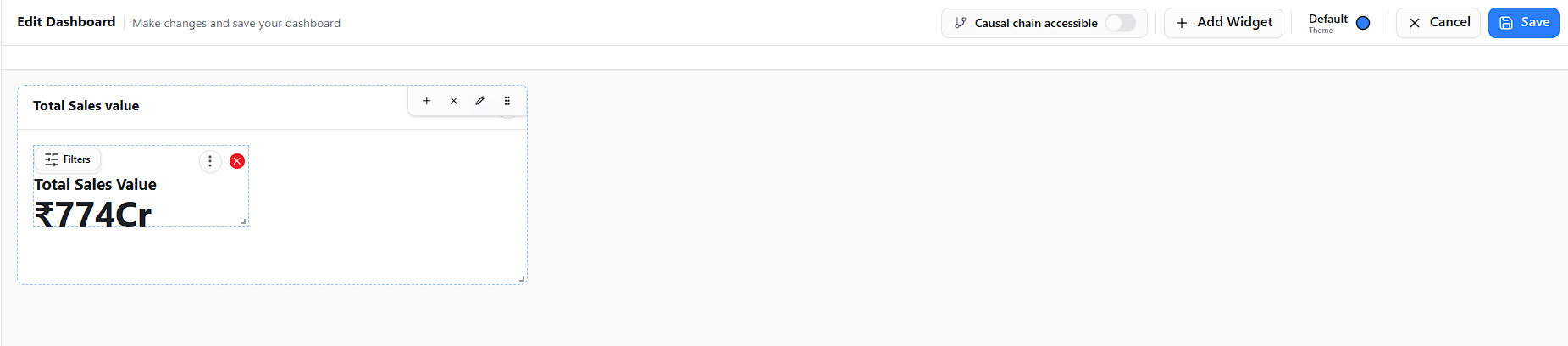
- Select Save at the top right.
You should now see
Your dashboard with the tile and its Filters button.
Widgets are shared, not copied
If you change a widget, it changes on every dashboard that uses it.