
Step 6 · Build
Build your first widget
Build a KPI widget in FireAI by describing the number in plain words. The query helper writes the SQL, you run it, then format the tile in rupees with compact notation.
Updated September 30, 2026
You will make one tile that shows Total Sales Value. You describe what you want in plain words, FireAI writes the instruction, and you check the number against your trusted figure.
Describe the number
- Select Dashboards in the left menu, then the Widgets tab, then New Widget.
- The widget editor opens. The large area on the left is where the instruction (the query) goes. The panel on the right, Schema Explorer, lists all your tables.
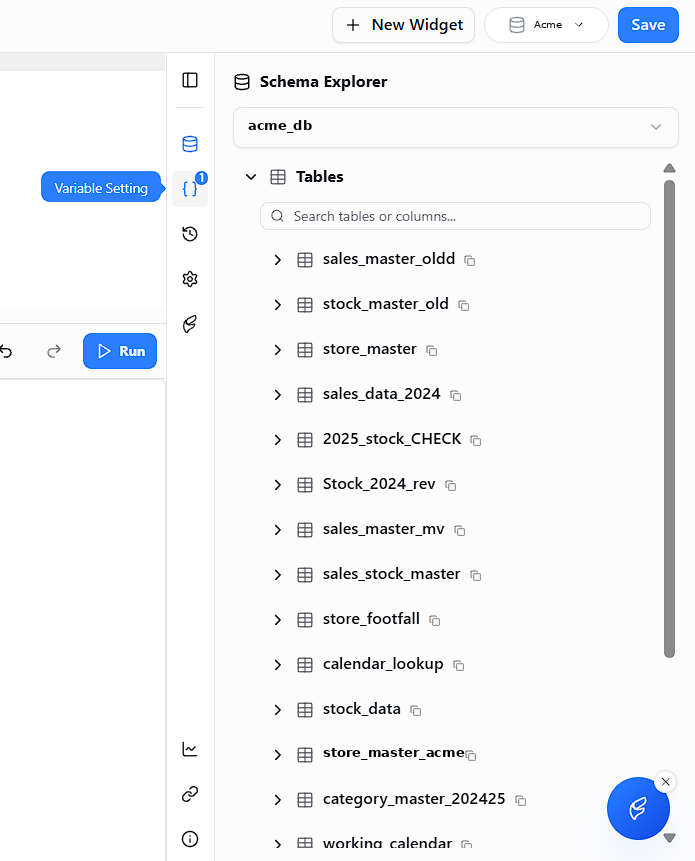
- Open FireAI's query helper in the widget editor and describe the number in plain words, naming the table from Step 3.
Type this
Total sales value from sales_master. Add up the sales_value column.- FireAI writes the query into the editor. It should look like this:
What FireAI should write
SELECT SUM(sales_value) FROM sales_masterIf it looks different, do not edit it yourself. Tell the helper what is wrong in plain words, for example "Use the sales_value column, not quantity", and it will correct it. You can also paste the line above in yourself.
- Select Run (the blue button under the editor).
- Below the editor, find Rows returned. It must say 1. Beside it you will see a long number.
One row only
If Rows returned is more than 1, the tile will show a random figure. Tell the helper: "Give me one total, not a list."
Check the number is right
- Look at the number. It covers every year in your data, so it will be higher than your 2024 trusted figure. That is expected: in Step 7 you narrow it to one year and check it properly.
Make it look like a tile
- Find the gear icon in the thin column of icons on the right and select it. This opens Visualization Settings.
- At the top, change the type from Table to KPI (a single big number).
- Under Data Key, choose
sales_value. Type a Title, such as "Total Sales Value".
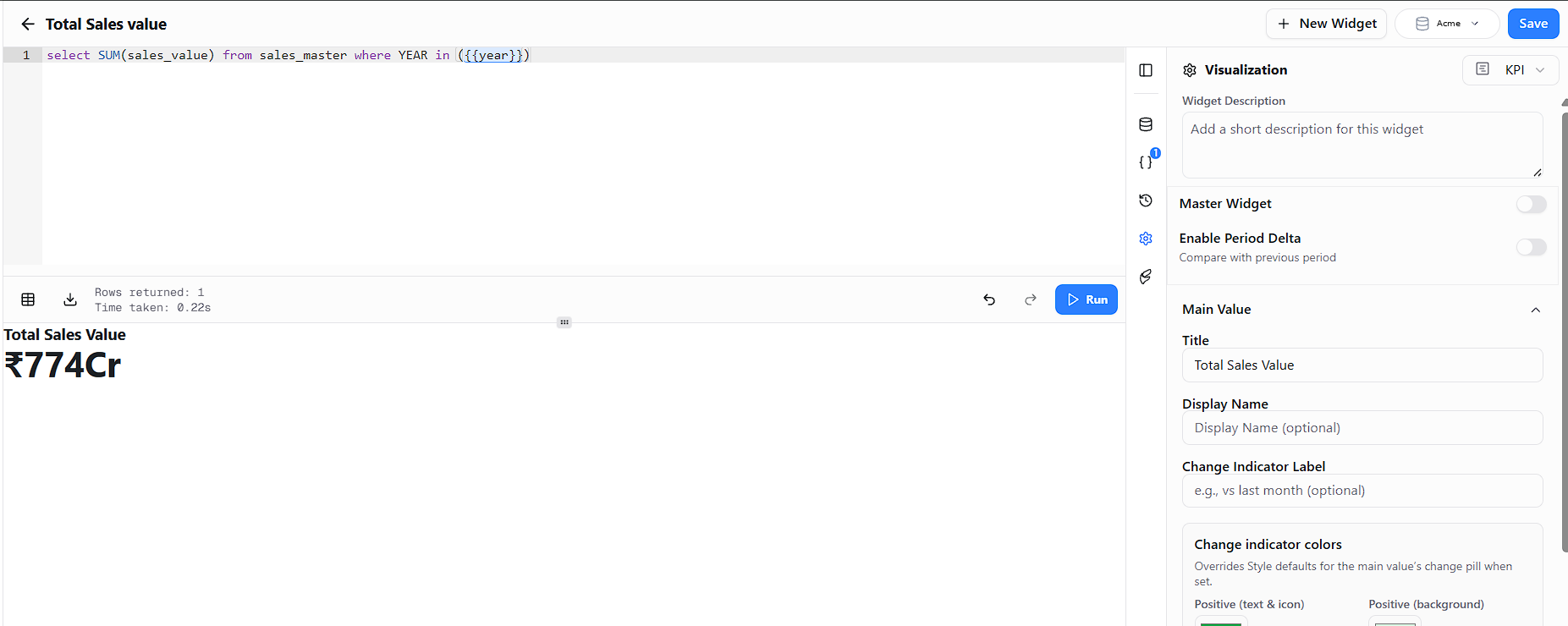
- Scroll down to Value Formatting and select Configure Formatting. Set Type to CURRENCY, choose INR with an Indian locale, and turn on Compact Notation.
You should now see
A big, short number like ₹774Cr instead of a long string of digits. Do not save yet.